File Permissions
The files and folders stored on your website each have their own permissions. Permissions can control who can access and view the files or folders on your website. The 403 Forbidden error could mean your file has incorrect or bad permissions.
A string of 3 numbers denotes the permissions. File and folder permissions should show the following:
- WordPress site files must be 644 or 640.
- Directories and WordPress folders must be 755.
- Executable scripts within the cgi-bin folder must be 755.
- Images, media, and text files like HTML should be 755 or 644.
Hidden Files (Dot Files)
Suppose you see “client denied by server configuration” in your Error Logs. In that case, this usually means bad file permissions, but it could also mean that the visitor is trying to look at a hidden file, like the .htaccess file. You cannot look at that file or any file name that starts with a dot in your browser.
For example, https://example.com/.htaccess will always result in a 403 error.
To resolve a 403 Forbidden error caused by permissions:
- Log in to cPanel.
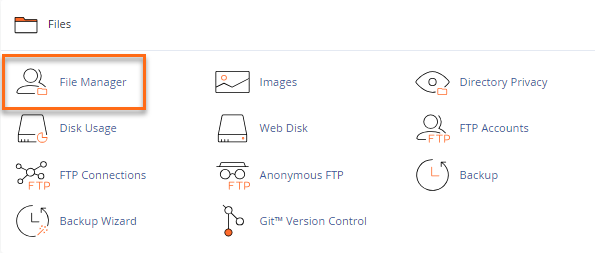
- Navigate to the Files section, then click on the File Manager icon.
- Locate and click your website’s directory (also known as the document root) from the list. For this example, we will use public_html.
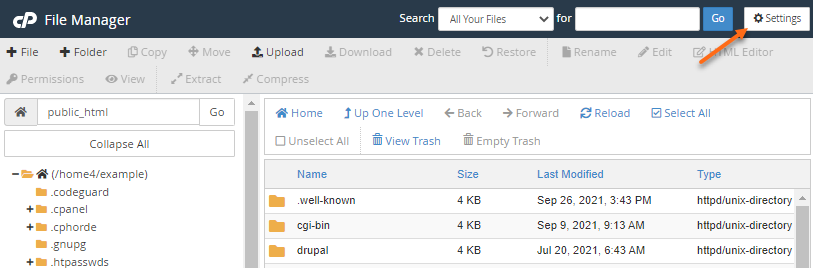
- Once you see your website’s files and folders, click the Settings button at the top-right menu.
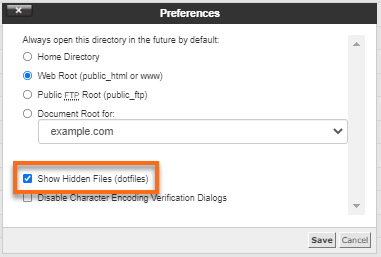
- In the pop-up window, select Show Hidden Files (dotfiles), then click Save.
- Once all files are displayed, check the Permissions column on the right. Scroll down and see if they follow the correct permissions for files and folders as stated above.
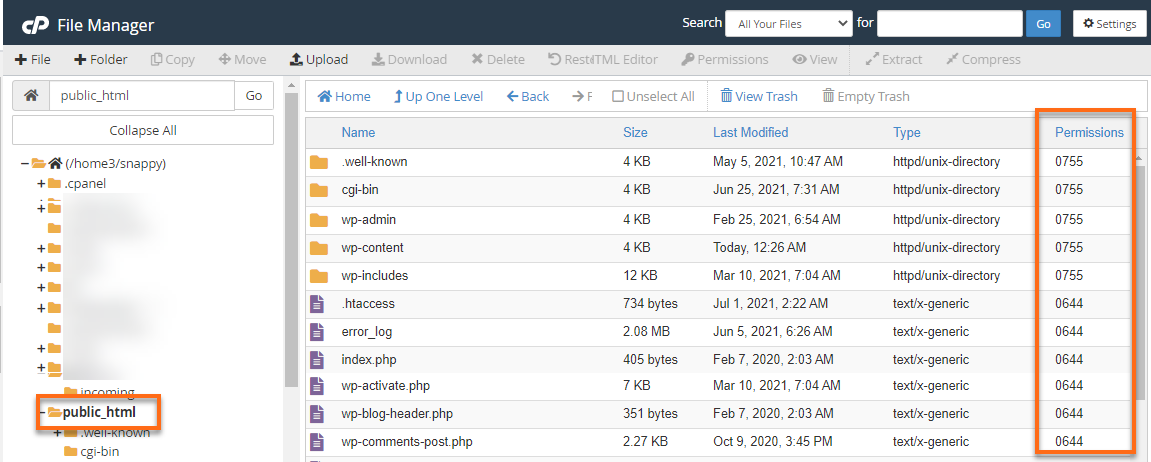
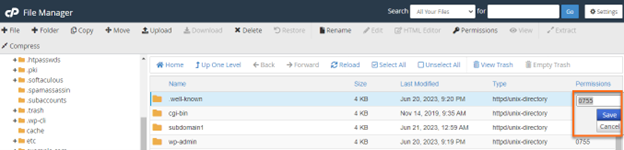
- If any of the files or folders seem to have different permission, you may go ahead and change them to default by double-clicking the set of numbers. Click Save once done making the update.