
Suppose you ever encounter problems with the way your server handles PHP packages or find WordPress requesting that you upgrade your PHP version. In that case, it is helpful to know how to view and modify your server’s PHP. Updating your site’s PHP version is vital for the security of your website. Whenever a new PHP version is released, the latest security patches will be implemented. This article discusses a few options on how to upgrade the PHP version in your hosting account.
- Dianahost will be removing PHP 5.2 and 5.3 on Shared and Reseller hosting plans starting on August 31, 2021. With this soon-to-be update, you need to update your installations and applications so your websites can work with higher PHP versions before the removal of PHP 5.2 and 5.3.
- Starting February 2021,
- Dianahost will upgrade the available PHP versions on our hosting servers. PHP 7.4 will be available on shared hosting.
Please be aware that PHP versions older than 7.3 will no longer be supported as we work on upgrading accounts. If it is necessary for your website to use the older PHP versions, this can be done manually. Let us know via phone or Live Chat so we can assist you. However, we highly recommend that you upgrade all your website installations and applications to be compatible with the newest PHP version.
How Do I Upgrade My Site’s PHP Version?
If your website needs a different PHP version, you will want to log into your cPanel to manage the site’s version.
For our Optimized WordPress customers, put your mind at ease!
- Dianahost’s got your back in ensuring that your account is running the latest up-to-date PHP version.
- There is no need to downgrade PHP for a WordPress plugin or theme. Instead, it is best to upgrade your plugin or theme to work with the PHP version available in your Optimized WordPress accounts.
- If you need to change your PHP version, our support team will handle that for you. Just reach out to us via phone or Live Chat.
MultiPHP Manager or PHP Selector
Depending on the version of cPanel you’re using, you will use either MultiPHP Manager or PHP Selector to modify your PHP version. PHP Selector is being phased out, so it is most likely that you will use MultiPHP Manager. To determine which one you have, you will need to:
- Log in to cPanel
- Navigate to the Software section.
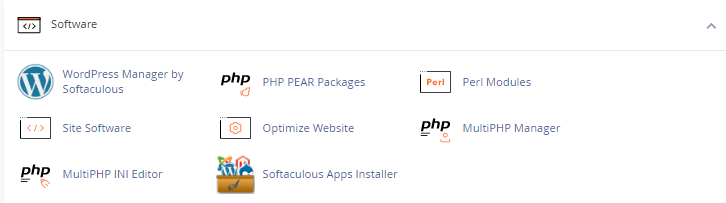
- If you see MultiPHP Manager available in your cPanel, you should follow the instructions for Option 1 – MultiPHP Manager below.

- If you still have the PHP Selector in your cPanel, which many will not, you can follow the directions for Option 2 – PHP Selector below.
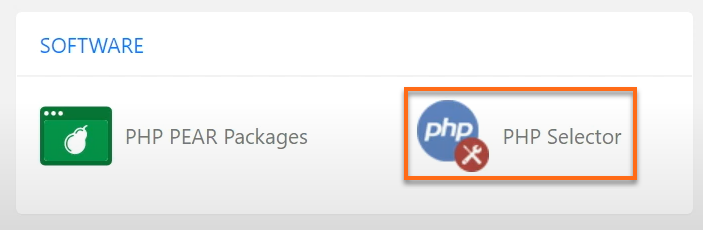
- If you see MultiPHP Manager available in your cPanel, you should follow the instructions for Option 1 – MultiPHP Manager below.
Option 1 – MultiPHP Manager
Here are the instructions outlined in the video above.
- Log in to cPanel.
- Select MultiPHP Manager in the Software section.
- Select the domain you want to upgrade by checking the box on its left side.
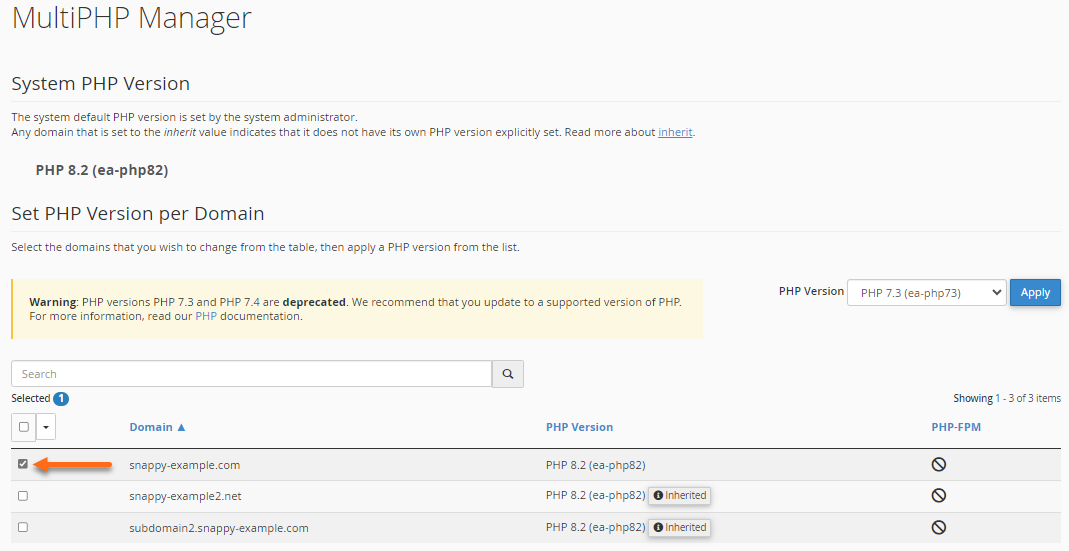
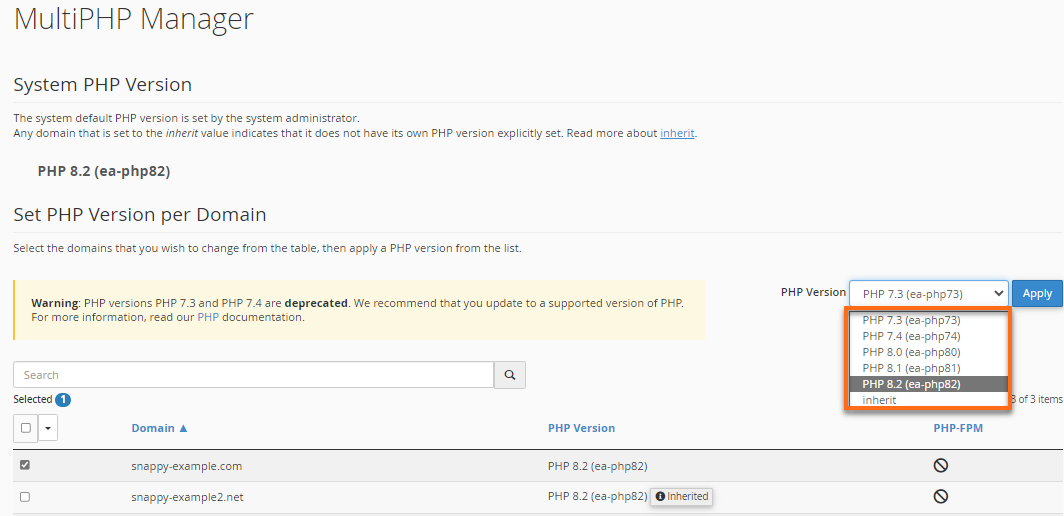
- Choose your preferred PHP version from the dropdown, then click Apply.
- There will be a pop-up in the upper right corner, notifying you that the change was successful.

Use PHPedge as default
AddHandler application/x-httpd-php-edge .php
<IfModule mod_suphp.c>
    suPHP_ConfigPath /opt/phpedge/lib
</IfModule>
Option 2 – PHP Selector
This will be sunset, and few will have it available.
The PHP Selector can be seen in some Shared servers. However, it may be time to say goodbye to this feature very soon as you may not see the PHP Selector available in your cPanel anymore. If you do still happen to have the PHP Selector, click the expand below for the instructions.