
Softaculous allows you to select additional files or folders and associate them with your script install. This list will be used to back up the files or folders and clone functions.
- Log in to cPanel.
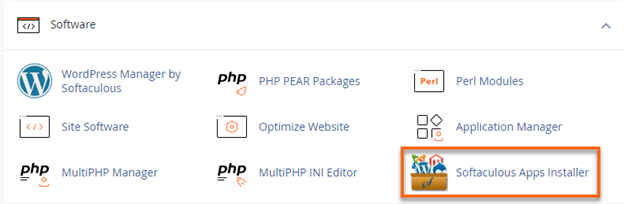
- Look for the Software section, then click on Softaculous Apps Installer.
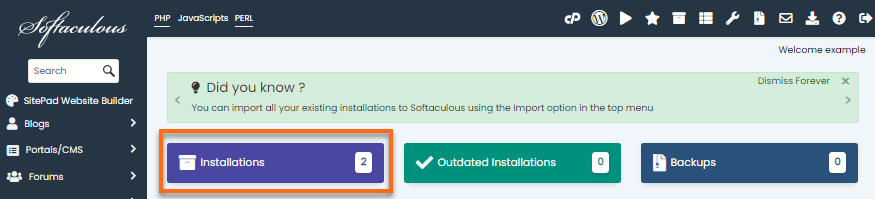
- Click the Installation box located on the dashboard.
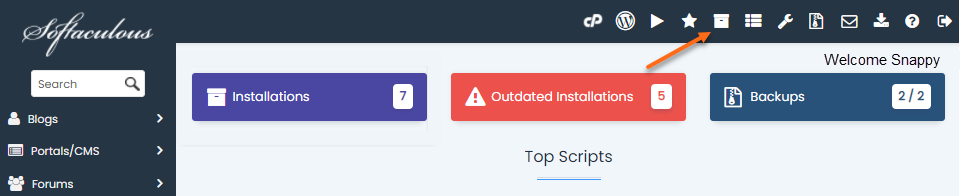
Alternatively, you can also click the All Installations icon located in the top-right corner.
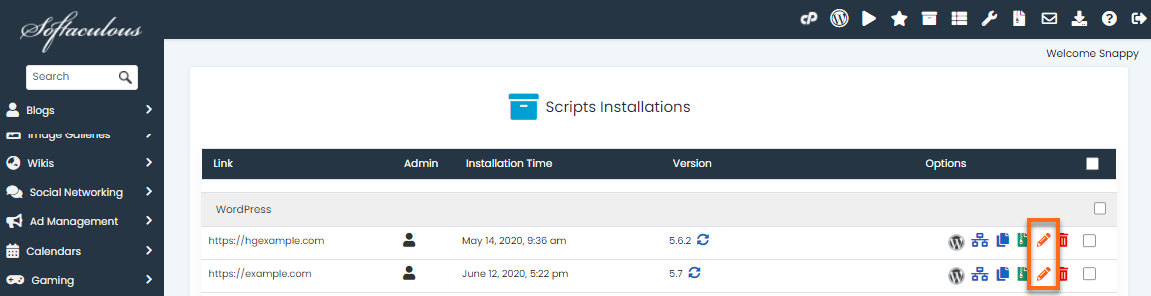
- On the Scripts Installations page, locate your website, then click the Edit Details icon.
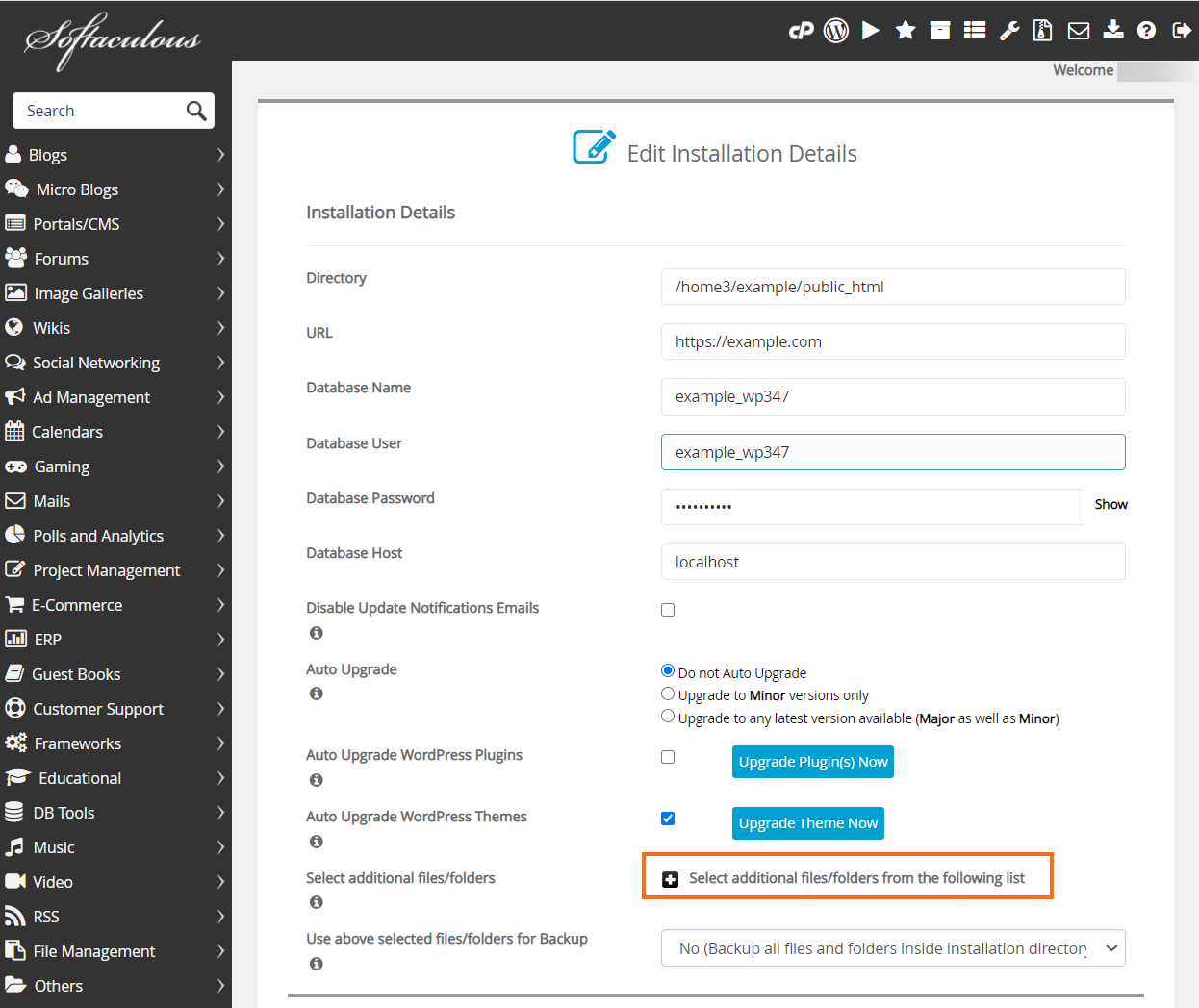
- You will be redirected to the Edit Installations Details page, where you can customize your install information. Scroll down and locate Select additional files/folders from the following list.
- Click the + icon beside Select additional files/folders from the following list to open the expand.
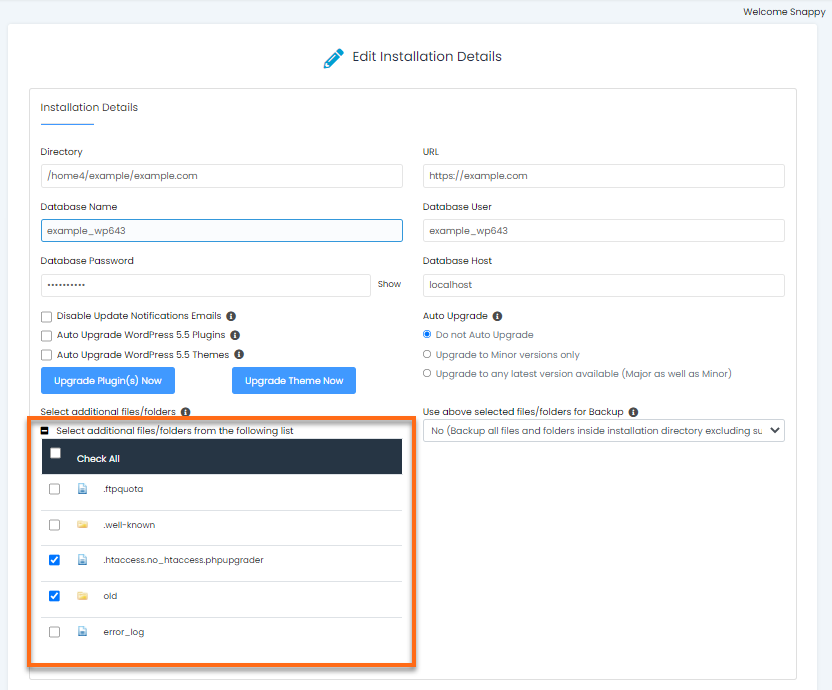
- From the list, select the file(s) and/or folder(s) you want to associate with your installation.
- Once done, scroll down and hit the Save Installation Details button.