- Log in to cPanel.
- Look for the Domains section, then click on the Subdomains icon.

- In the Subdomain field, enter the name of the subdomain you wish to use. For example, if you choose “blog,” your subdomain will be:
blog.example.com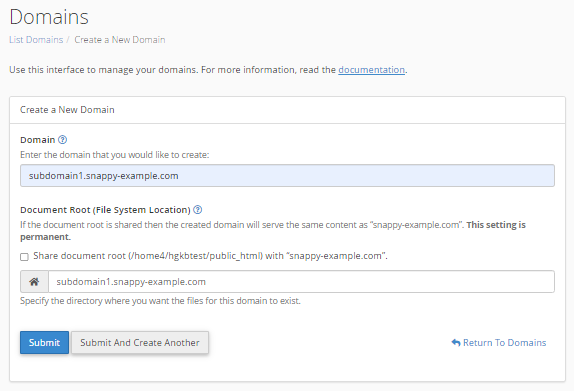
- In the adjacent dropdown menu, select the domain for which you wish to create this subdomain. You may create a subdomain for any addon domain or parked domain that already exists in your cPanel.
Addon domains automatically create a corresponding subdomain that reflects the addon domain and primary domain.
- The Document Root field should automatically populate with a suggested location from which the subdomain will load its content.
- For instance, if you chose “blog” as your new subdomain, then the Document Root field will populate with “blog.example.com.” This means that the new subdomain will load its content from the folder named blog from within the public_html directory.
You may also enter your preferred document root or directory for your subdomain – just make sure it is not a duplicate.
- Once all three fields are set, click Create to complete the creation of your new subdomain. You should see the new subdomain and its document root just below that same page.

Knowledge Base
Click to Copy