Finding phpMyAdmin in your Control Panel
Once a database is created, you can access it via the web administration panel.
cPanel
- Log in to cPanel.
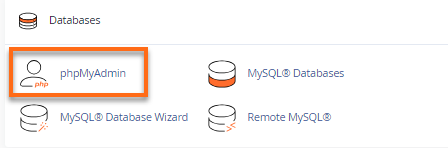
- Look for the Databases section, then click the phpMyAdmin icon.
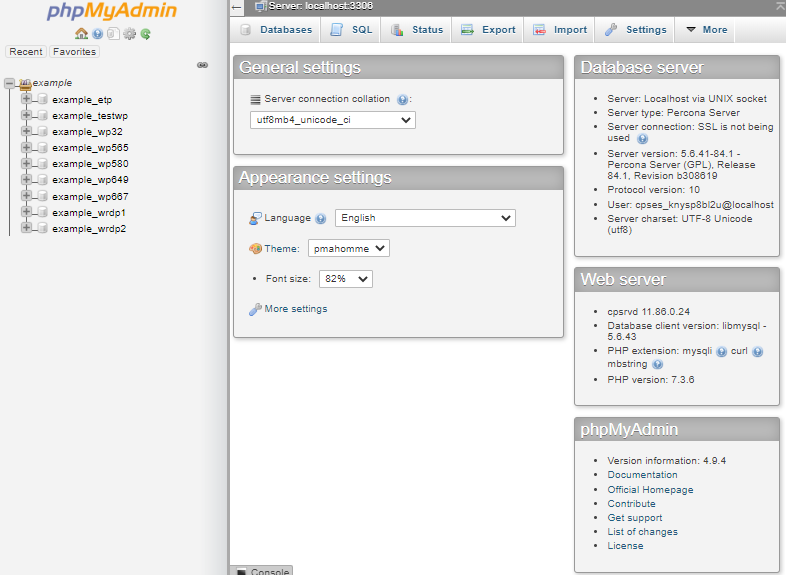
- A list of available databases will be displayed once you expand the username on the top left-hand side of the phpMyAdmin homepage.
Plesk
- Log in to Plesk.
- Click on Website & Domains from the left-hand menu.
- Click on Databases in the list of functions.
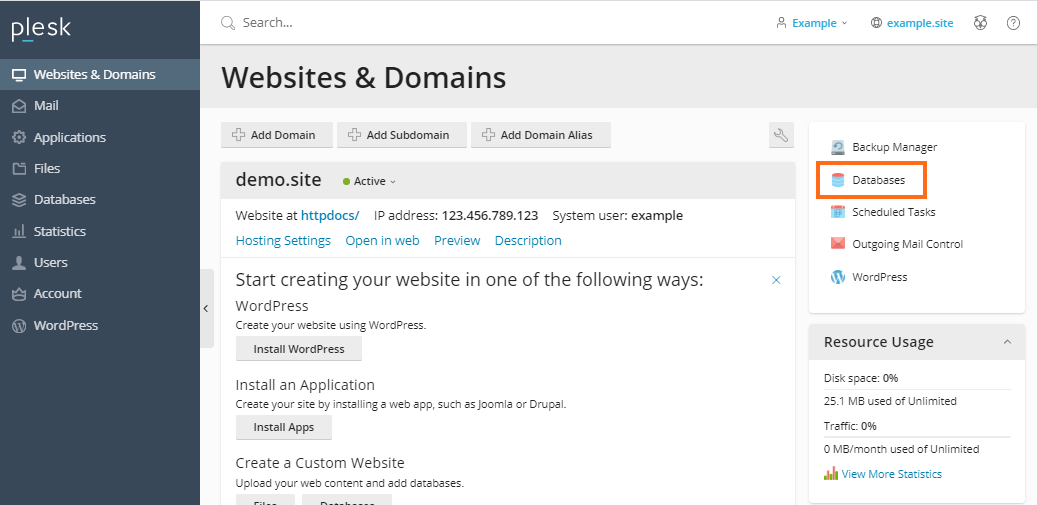
Alternatively, you can also click Databases from the left-hand menu.
- Locate the database name you wish to access.
- Click on phpMyAdmin under your database’s list of functions.
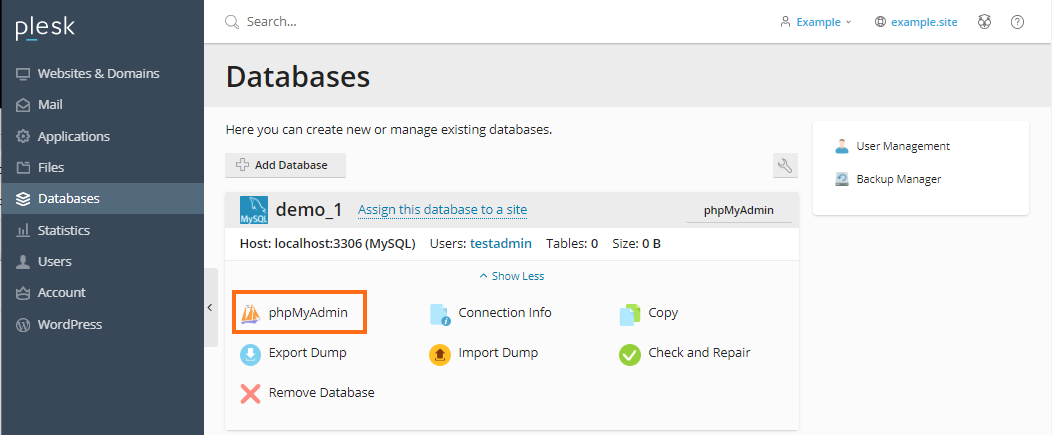
- You will then see a list of available databases in your control panel.
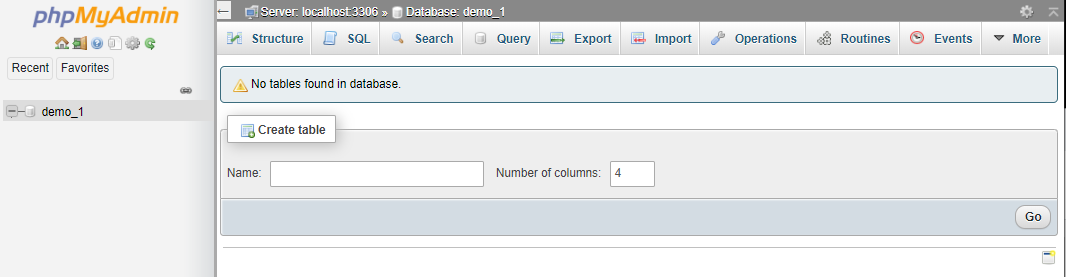
Exporting Databases via phpMyAdmin
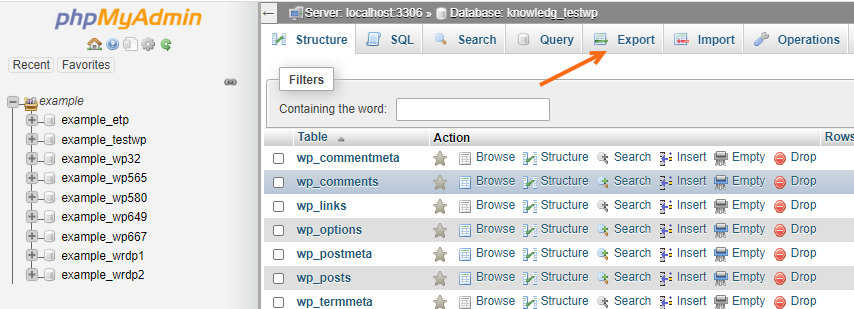
- Select an existing database in phpMyAdmin.
- Click the Export tab on the top menu.
- The Quick radio button is selected by default.
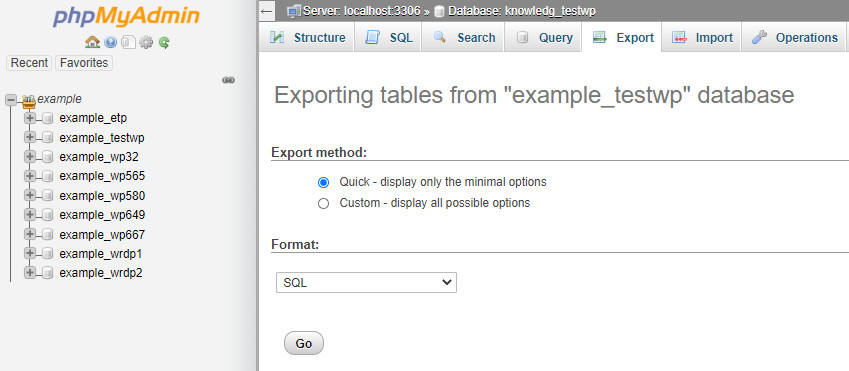
- Scroll down and click Go.
- This will download a .sql file into your computer. Depending on the database’s size, the downloading may take some time.
More in-depth instructions, including explanations of different options on the export screen, can be found in the video above.
Exporting Databases via cPanel’s Backup
Alternatively, you can also use the Backup feature of your cPanel, as demonstrated in the video guide above.
- Log in to the cPanel.
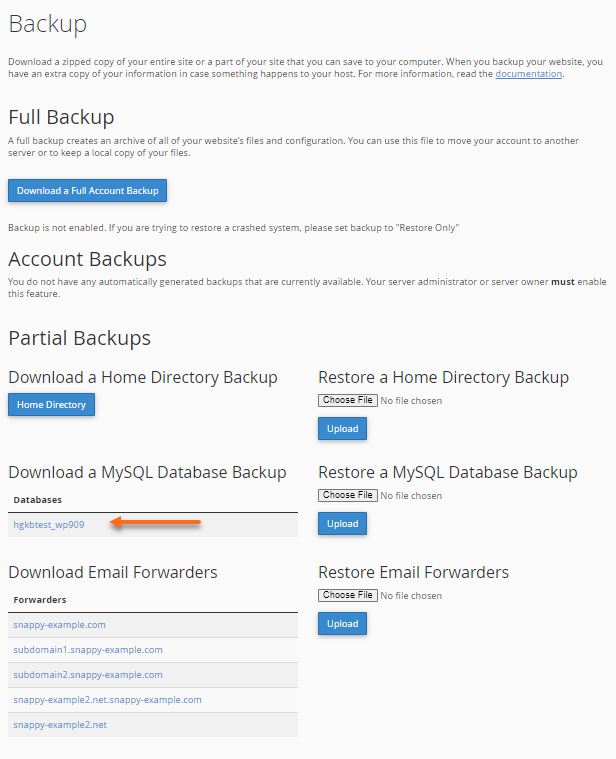
- Look for the Files section click Backup.
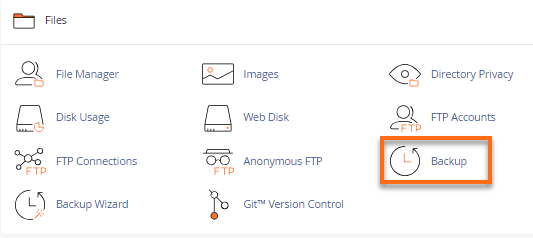
- Scroll down the Backup page and locate Download a MySQL Database Backup.
- Click the database name you wish to generate a backup for.