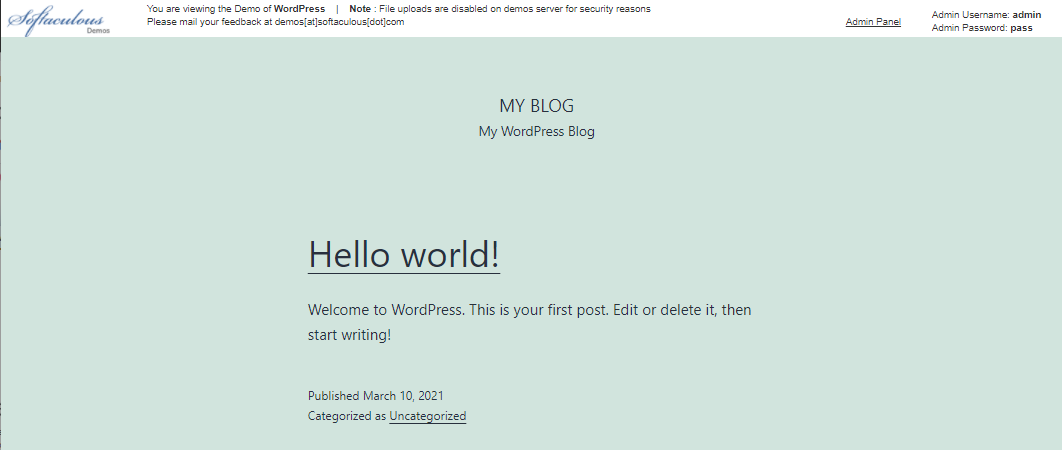
You can use several applications to create a website, and you may find it confusing which among them you should use. Wouldn’t it be awesome to view how a website would look like before actually installing it? This article discusses how to use the demo functionality of Softaculous. We will use WordPress as an example.
- Log in to cPanel.
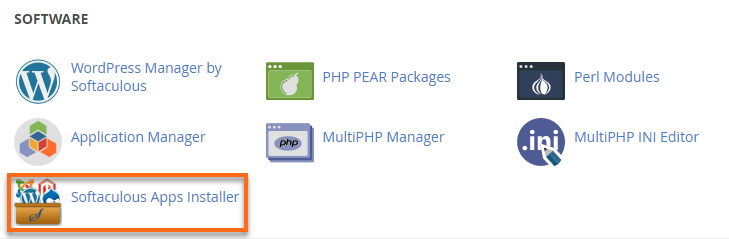
- Under the Software section, click on Softaculous Apps Installer.
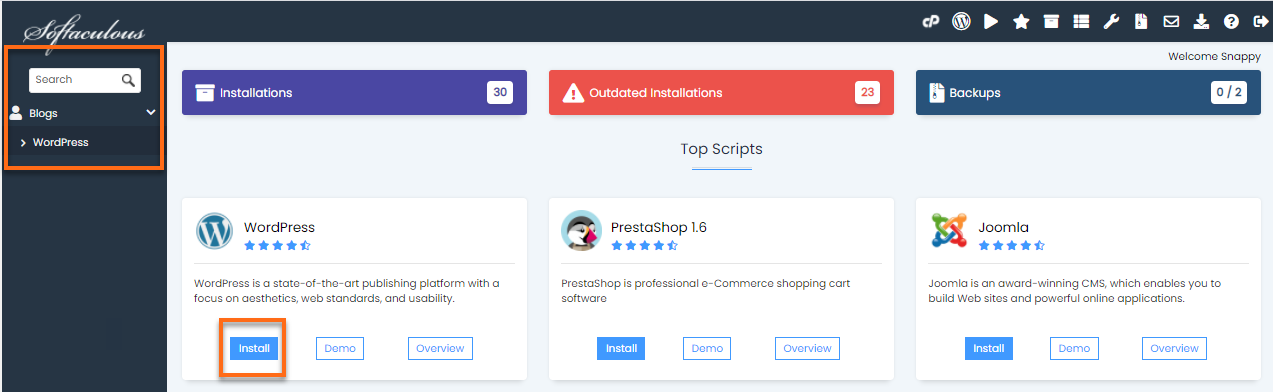
- Select your preferred script from the categories on the left-hand menu.
- You can use the search bar on the top left to look for the script you wish to use.
- You can also click any of the script widgets.
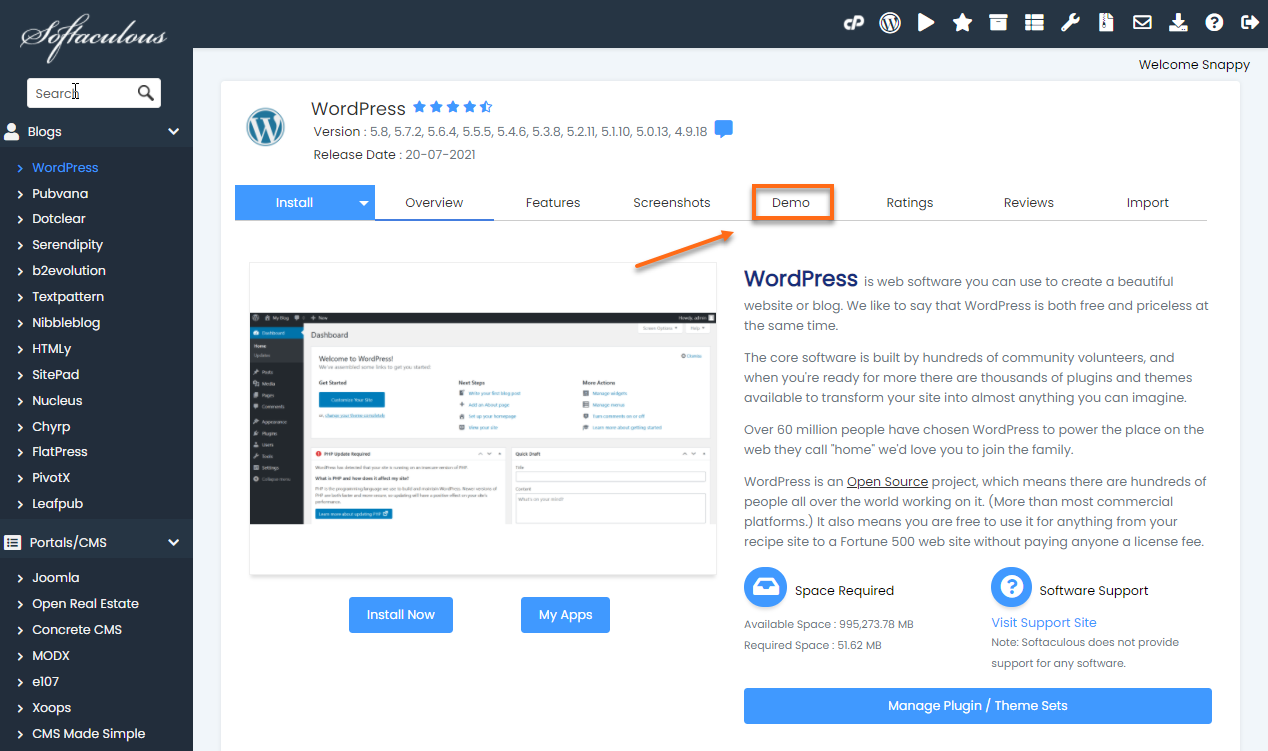
- On the script’s page, select the Demo tab.
- Softaculous will then launch its demo version.
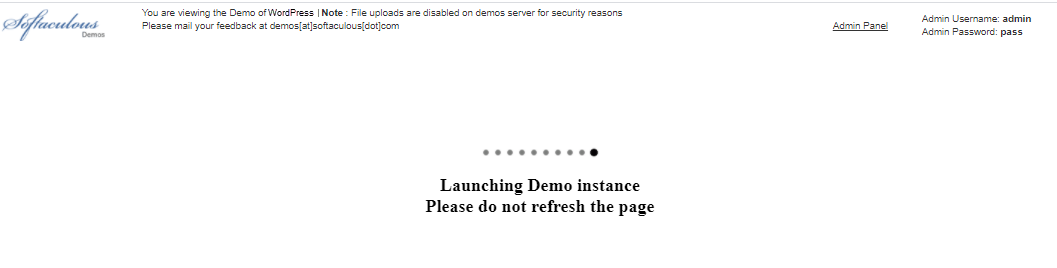
- Once done, the page will show the scripts’ demo version.