In the video below, we will walk you through identifying the “Missing MySQL Extension” error and the steps to resolve it.
- You are logged into your Customer Portal. You can also log in after clicking the link.
- The hosting package you are attempting to access is either Shared or Cloud. The link will only work for the first type of this package listed in the billing account.
- Log in to cPanel.
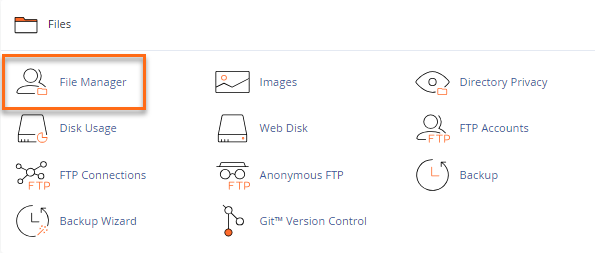
- Go to the Files section, then click on the File Manager icon.
- Locate and open the public_html folder.
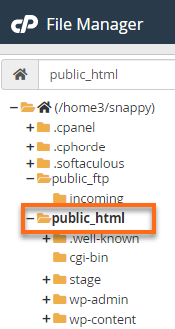 The public_html is the document root of your primary domain, which is why we’re using it for this example. If you are doing this for a subdomain or an addon domain, you will want to go to the domain’s document root instead.
 - Locate the .htaccess file, right-click on it, and select View.
- In your .htaccess, you should see the PHP handlers entries. First, you’ll have to identify and remove the old PHP handler.
The old PHP handler you’ll want to remove will look similar to one of these:
# Use PHP71 as default
AddHandler application/x-httpd-php71 .php
<IfModule mod_suphp.c>
    suPHP_ConfigPath /opt/php71/lib
</IfModule>
or
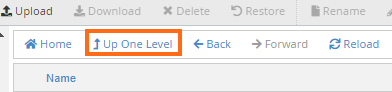
#Use PHPedge as default AddHandler application/x-httpd-php-edge .php <IfModule mod_suphp.c> suPHP_ConfigPath /opt/phpedge/lib </IfModule>Note: Suppose you did not see any of the two old PHP handler entries in your .htaccess file. Try checking other .htaccess files outside the public_html by clicking the Up One Level link in the top menu.
The PHP handler you want to keep will look like the one below. You will notice that it says “cPanel-generated handler, do not edit,” created by the MultiPHP Manager.
# php -- BEGIN cPanel-generated handler, do not edit
# Set the “ea-php73” package as the default “PHP” programming language.
<IfModule mime_module>
  AddHandler application/x-httpd-ea-php73 .php .php7 .phtml
</IfModule>
# php -- END cPanel-generated handler, do not edit
These PHP handlers are conflicting with each other, which is why your site is showing an error. You will need to remove the old PHP handler so the MultiPHP handler code will take effect instead.
- Once you’ve identified these PHP handlers, create a backup of your .htaccess file before making any changes.
- Right-click on the .htaccess and select Edit.
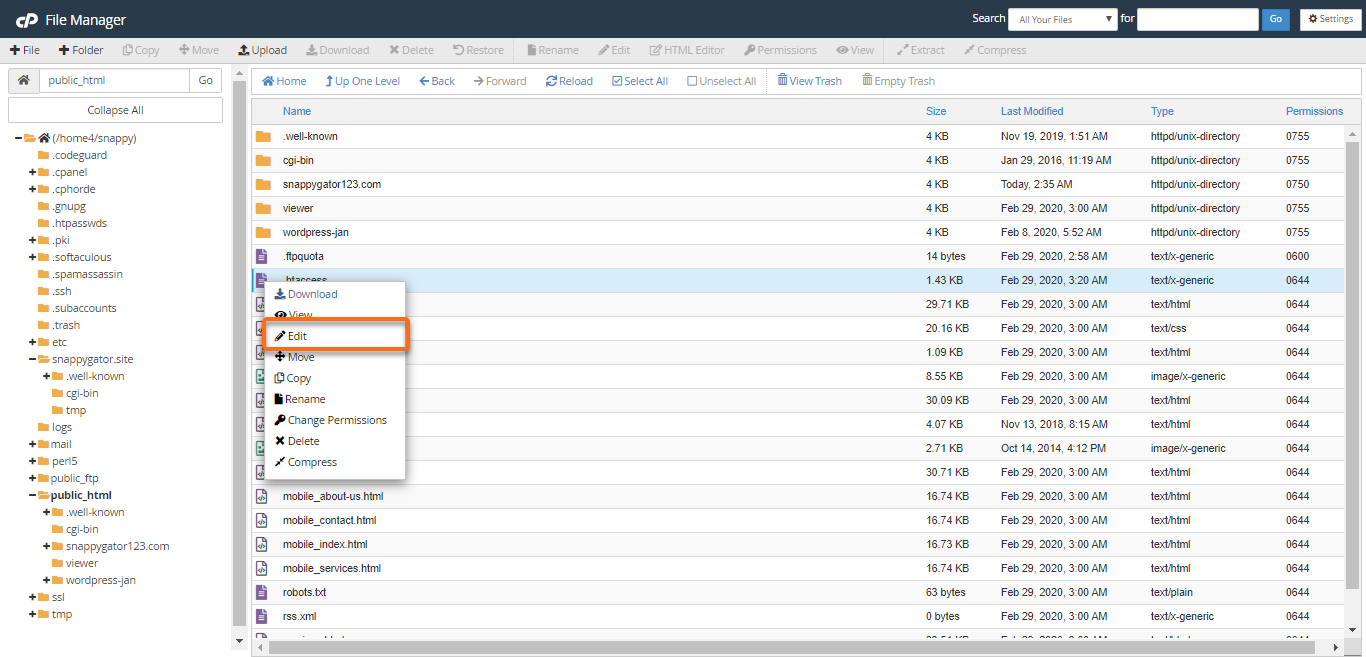
Alternatively, you can click on the .htaccess file, then click on the Edit icon at the top of the page.
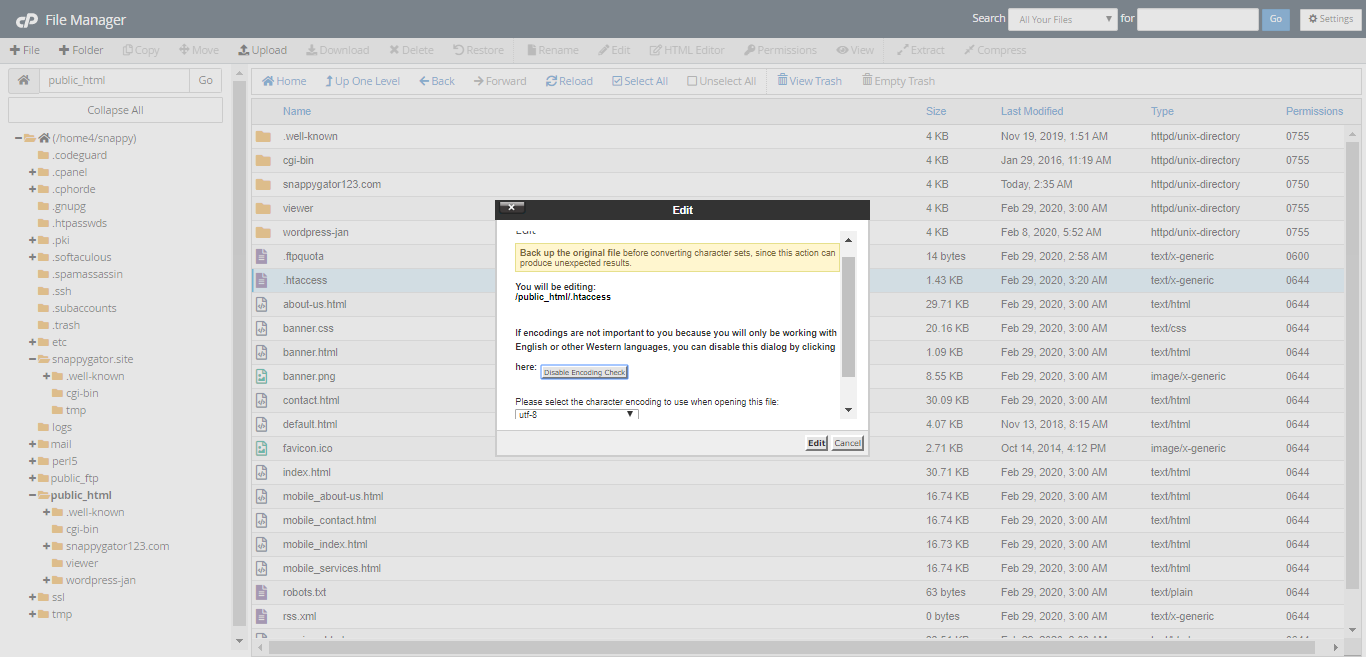
- A dialogue box will appear. Click Edit to continue. The editor will open in a new window.
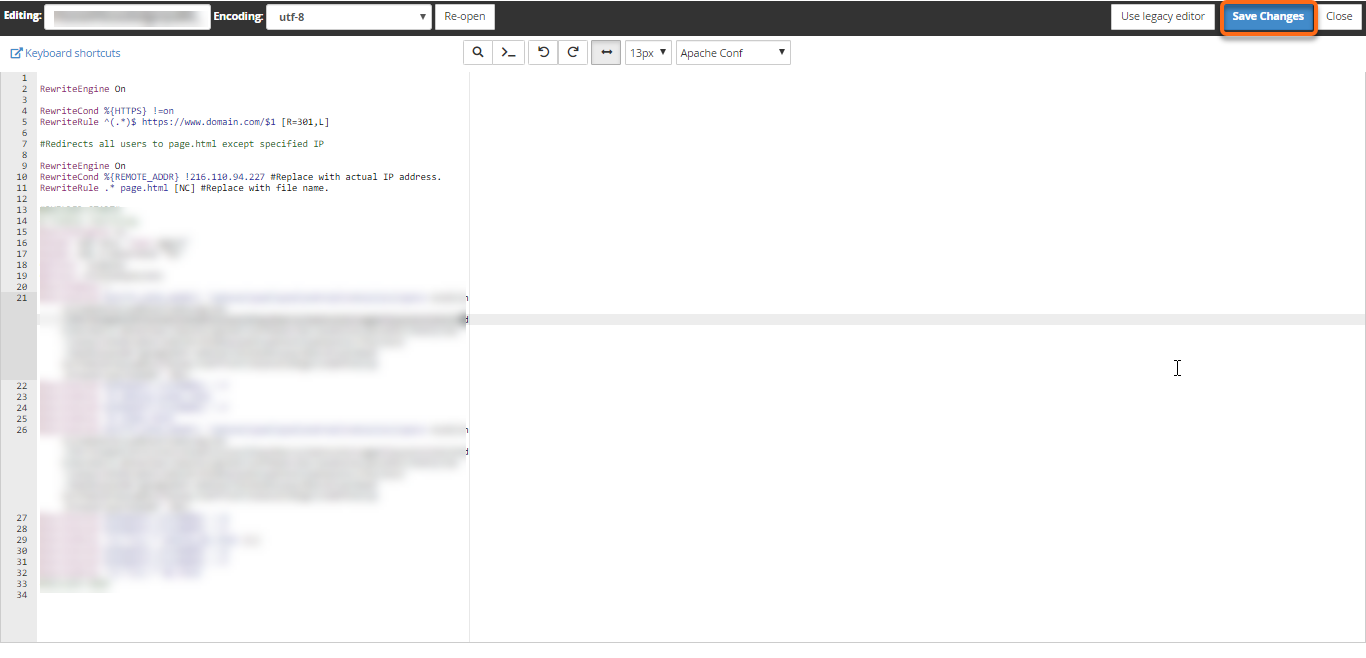
- Do the necessary update. To disable the PHP handler you don’t want, add a “#” at the beginning of each line, as shown in the example below.
#Use PHPedge as default #AddHandler application/x-httpd-php-edge .php #IfModule mod_suphp.c> # suPHP_ConfigPath /opt/phpedge/lib #/IfModule>Note: There may be more than one old PHP Handler entry in your .htaccess file. Continue adding “#” to any additional entries. You should only have one entry that begins and ends with:# php -- BEGIN cPanel-generated handler, do not edit . . . # php -- END cPanel-generated handler, do not edit
- Once done, click Save Changes in the upper right-hand corner.
- Click Close to exit the editor.
- Pull up your site to check if the error is already gone.
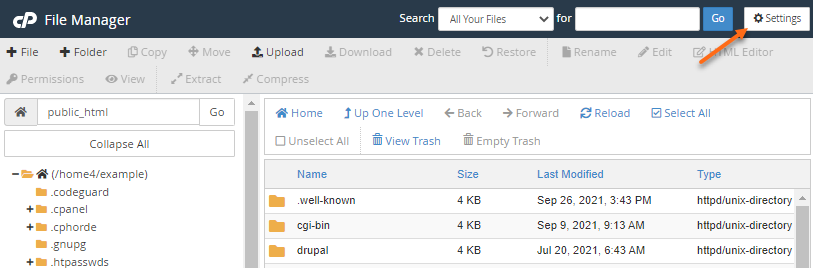
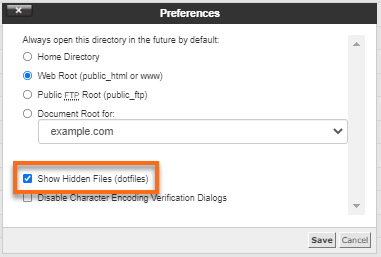
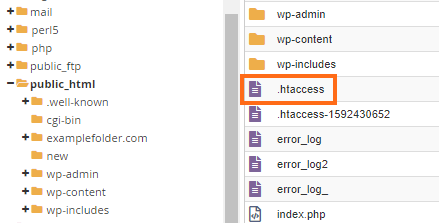
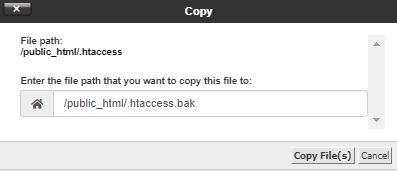
Try and continue with these steps.
- Navigate to the root directory by clicking on the top folder in the left-hand panel that starts with (/home#/user), where the user is your cPanel username.
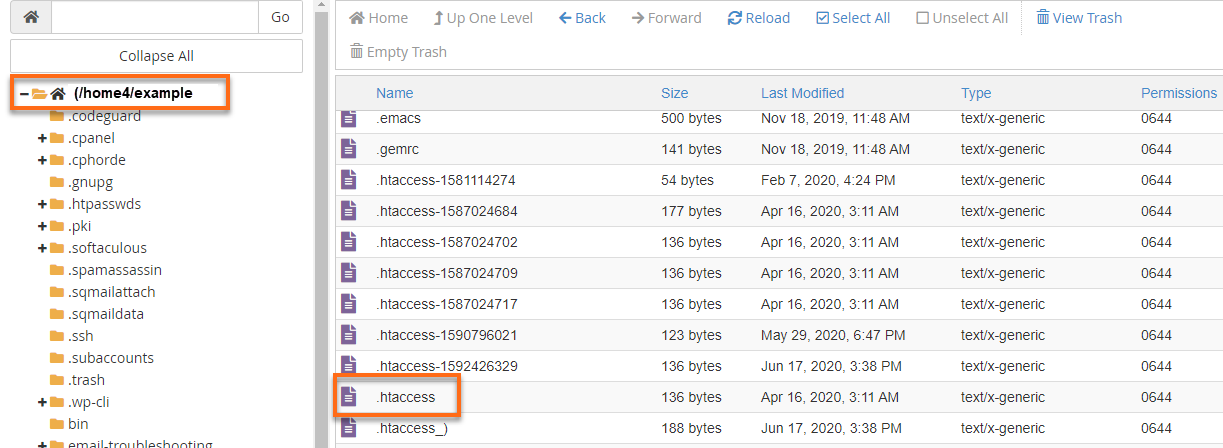
- Scroll down the right-hand panel until you locate another .htaccess file. Any .htaccess file with a string of numbers or characters is disabled and disregarded.
- Open the .htaccess file and check if there is an old PHP handler. Continue with the rest of the steps as discussed above.
- Once done, reload your website.
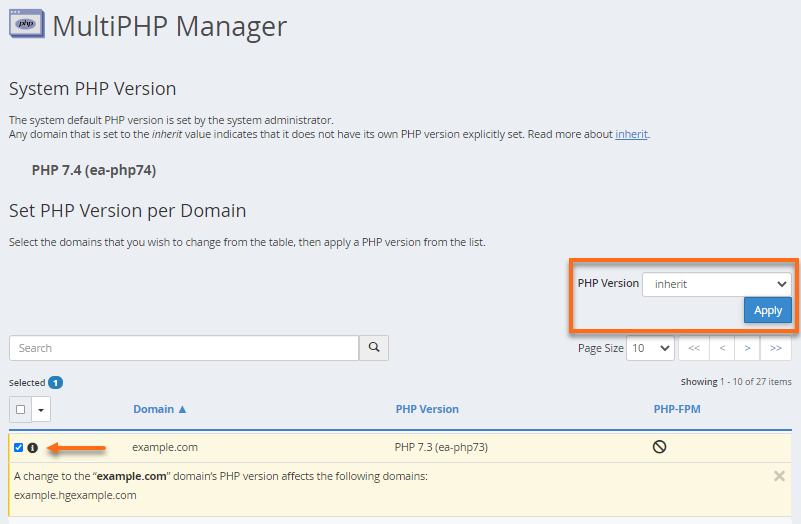
If the error is still there, go to your cPanel’s MultiPHP Manager and select your website name. Then, set your PHP version to inherit from the dropdown menu.