
You can log in to your Drupal website by going to:
http://exampledomain.com/?q=userBe sure to replace exampledomain.com with your domain name.
If Drupal was installed on the primary domain and pretty URLs was previously enabled, you also can use the following URL:
http://exampledomain.com/userIf Drupal were installed in a folder instead, you would need to add the folder’s name to the URL, like so:
http://exampledomain.com/thefolder/?=userOnce there, enter your username and password.
Request a New Password
If you have forgotten your Drupal password, the easiest way to regain access is to use the new password feature built into Drupal.
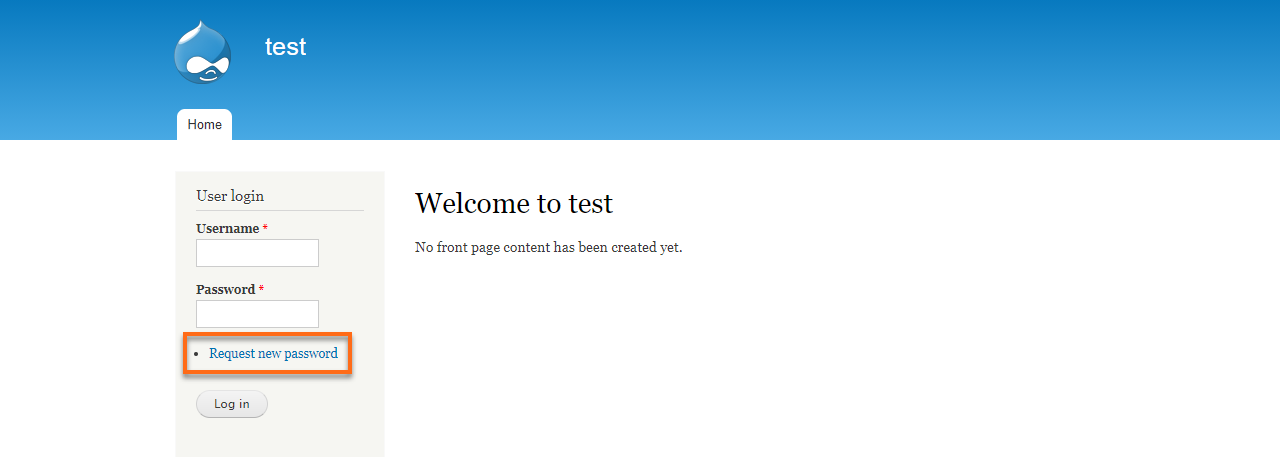
- Click on the Request new password tab on the login page.
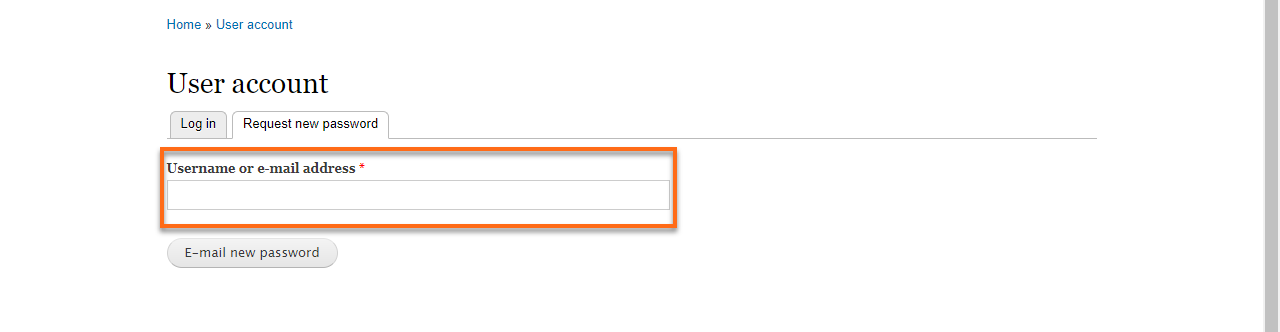
- Enter your email address or Drupal username, and then click on the E-mail new password button.
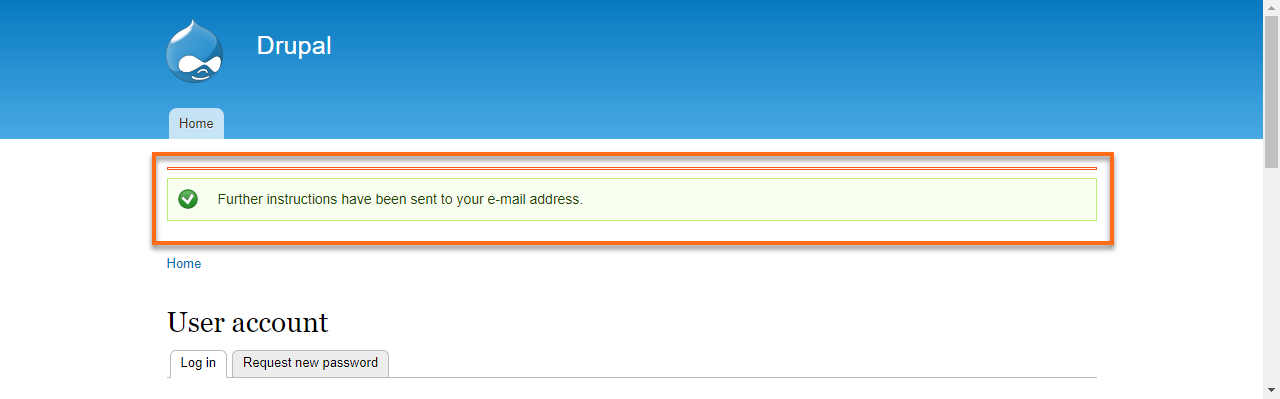
The page will refresh and display the following message:
- Check your email for your replacement login information.
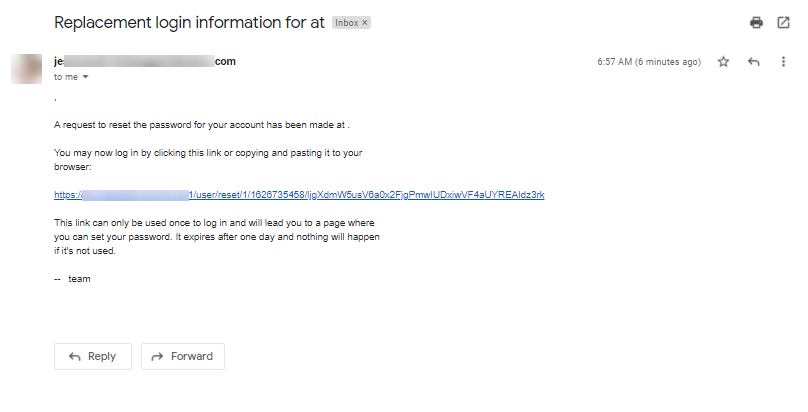
- Click on the link in the email. This link can only be used once.
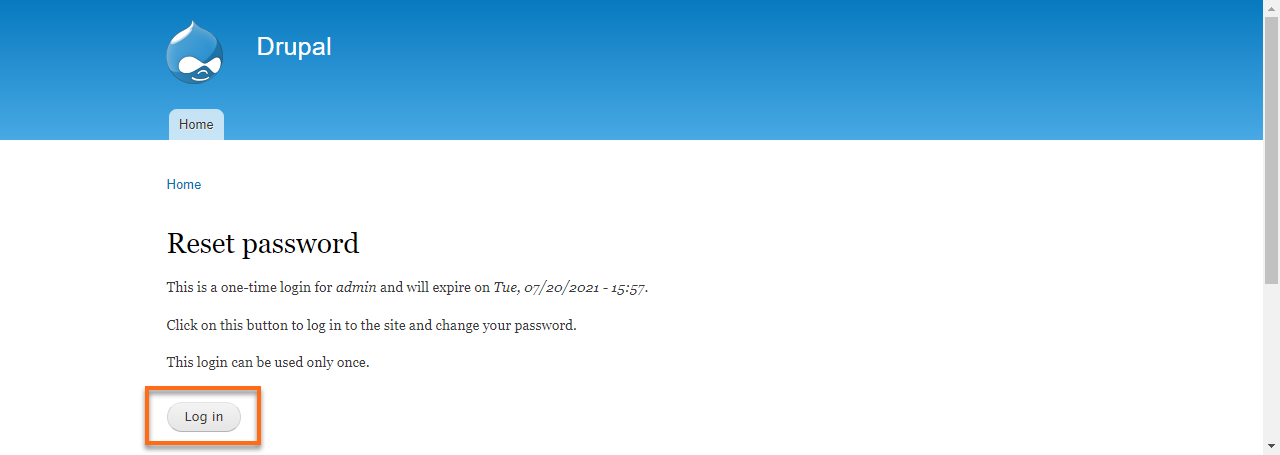
- Once on the page, click on the Log in button.
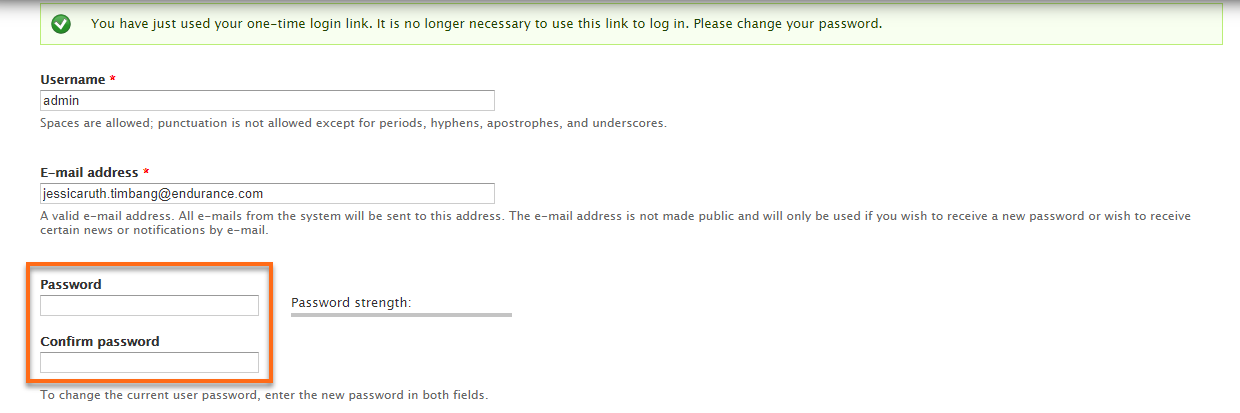
- Enter a new password in the fields provided.
- Click the Save button. The page should refresh and display the following message:
You are now logged in to Drupal 7. Be sure to use the password you just set to log in in the future.
Manually Resetting Your Password
Unlike WordPress and some other scripts, you cannot reset the password directly in the database; instead, you have to change the email to one that works and then reset the password via Drupal’s request new password feature.