- Log in to cPanel.
- Under the Software section, click on Softaculous Apps Installer. (Make sure you are already logged in to your cPanel for the links to work.)
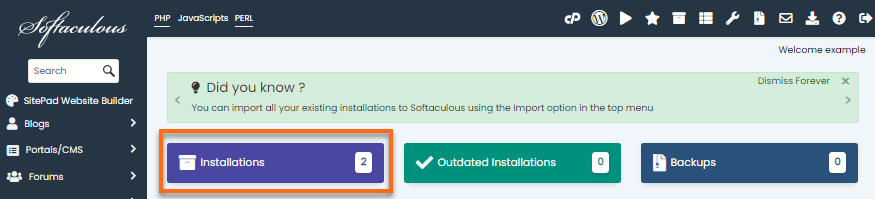
- Click the Installation box.
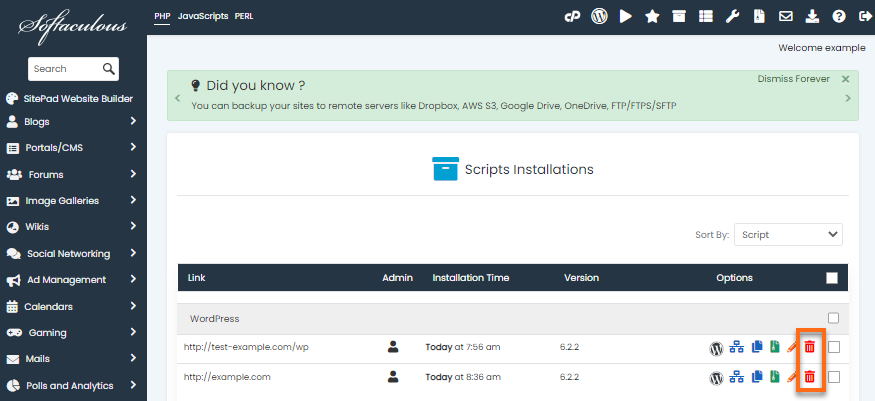
- On the next page, a list of your current installation will be displayed.

- Locate the WordPress website you wish to remove.
- Click the red X icon.
- You’ll get redirected to another page where you can completely remove the install.
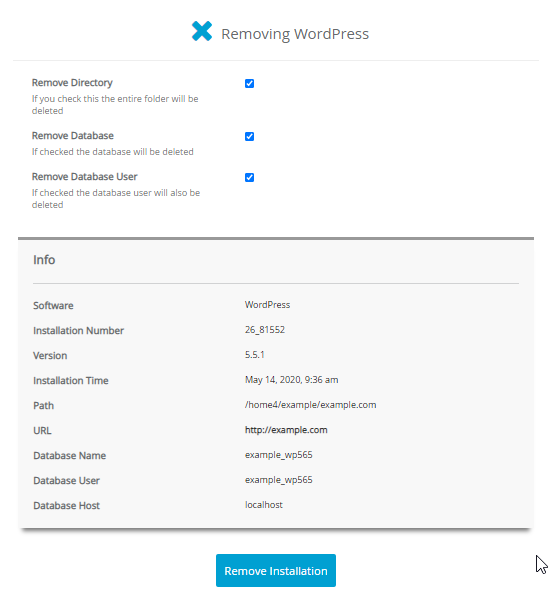
- Click the Remove Installation button to completely delete the WordPress install.
- A pop-up window will appear requesting confirmation. Click OK.
Note: This process is irreversible. Once you click OK, all website contents of your WordPress install will be deleted.
- A progress bar will appear. Once the install is completely removed, a confirmation prompt will appear.
- Click the Return to Overview link to go back to the Softaculous WordPress menu.

Knowledge Base
Click to Copy