- Log in to cPanel.
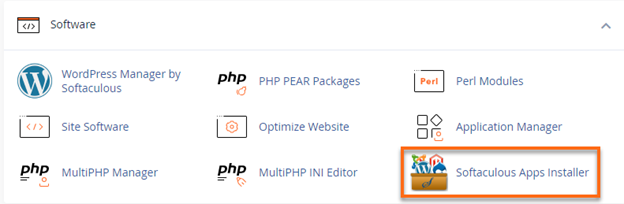
- Under the Software section, click on Softaculous Apps Installer.
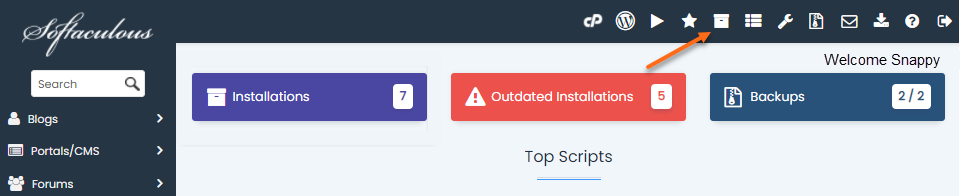
- On the Softaculous homepage, click the All Installations icon located at the top menu.
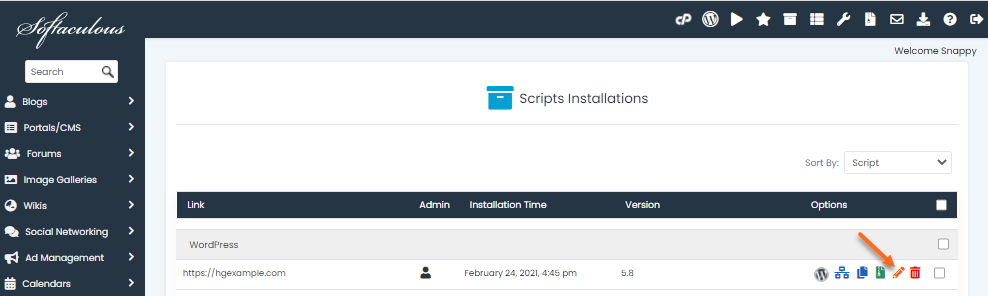
- Locate your website from the list of scripts, then click the Edit icon.
- On the Edit Installation Details page, scroll down to the Admin Account section.
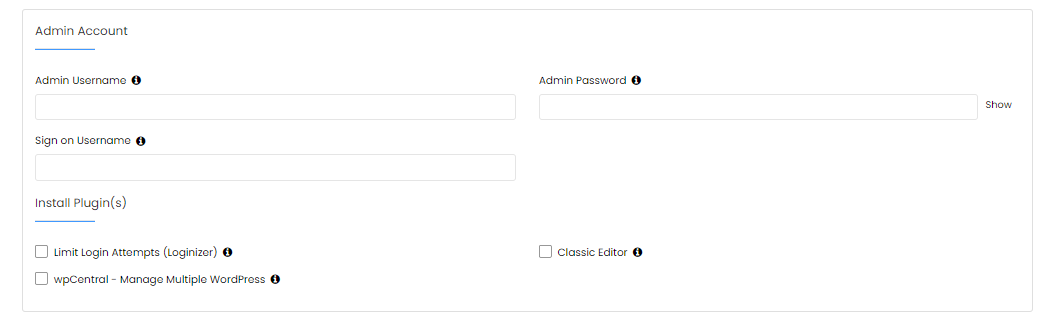
- Enter your admin account’s current username in the Admin Username field.
- Provide a new password in the Admin Password box.
- Once done, scroll down and click the Save Installation Details button.
- A confirmation page will appear. You can now try logging in to your admin account using your new pass

Knowledge Base
Click to Copy