
Method 1: Via the cPanel Login Page
To get started, you need access to your signup email address.
Note: Your signup email address is also found on the cPanel’s Contact Information page.
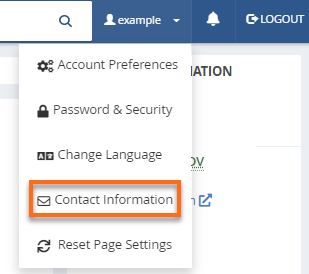
All cPanel notifications will be sent to the email address shown in that section, including password resets. Please make sure you have access to that email account.
- Enter your cPanel’s URL in a browser.
- Click the Reset Password link.
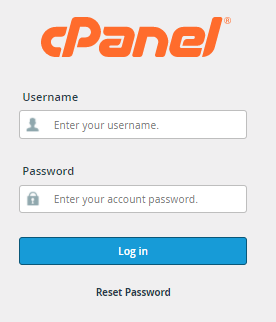
- On the next page, enter your username.
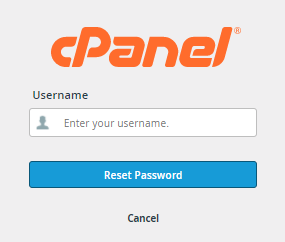
- Once done, click the Reset Password button.
- Enter your signup email address, then click the Send Security Code button.
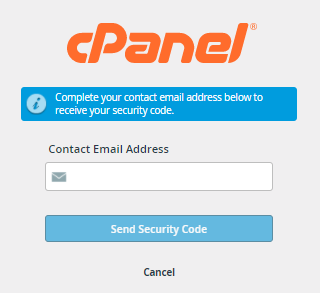
- Check your email account and take note of the security code.
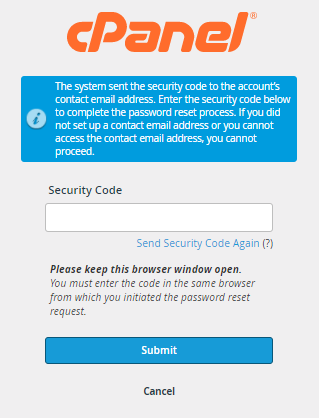
- Enter your security code, then click Submit.
- Provide your new password.
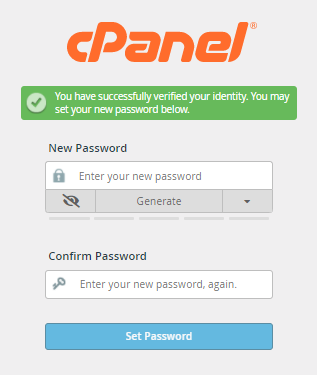
- Once you confirm your new password, click the Set Password button.
- A successful notification will be displayed on the next page. Click on Log in to cPanel.
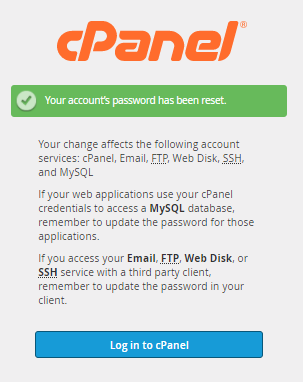
- Enter your cPanel username and new password to access your cPanel.