
How to Restore a Backup
- Log in to cPanel.
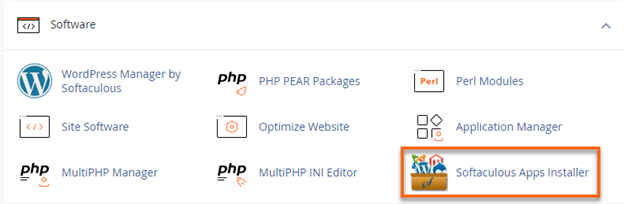
- Navigate to the Software section, then click on the Softaculous Apps Installer icon.
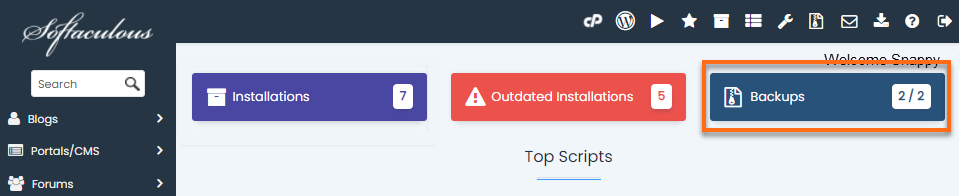
- At the top of the page, click on the Backups box.
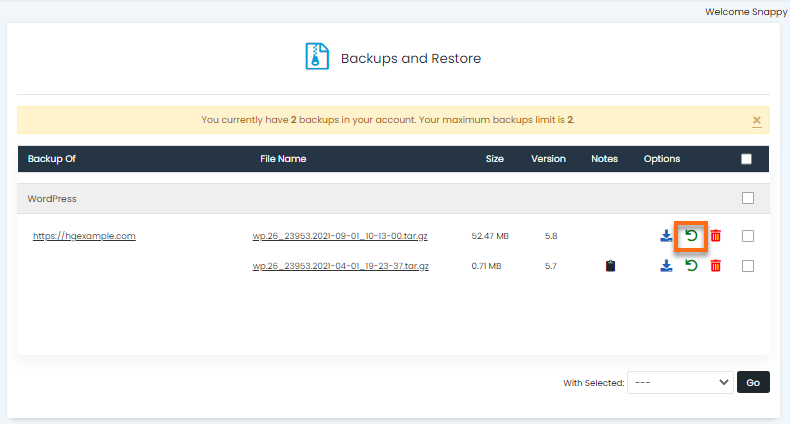
- Click the Restore icon next to the backup you want to use.
- Here you have three options. Restore Directory and Restore Database are selected by default.
Note: If you chose Full Backup when you created the backup, you could select the second box for Delete existing files/folders.
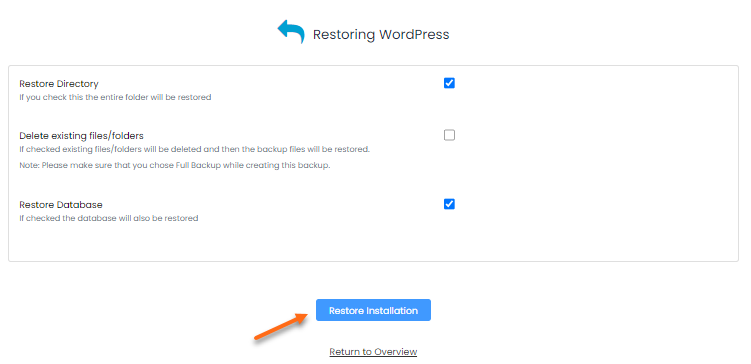
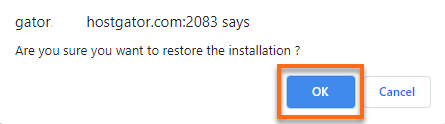
- Click the Restore Installation button, then click OK on the pop-up window to confirm the restore process.
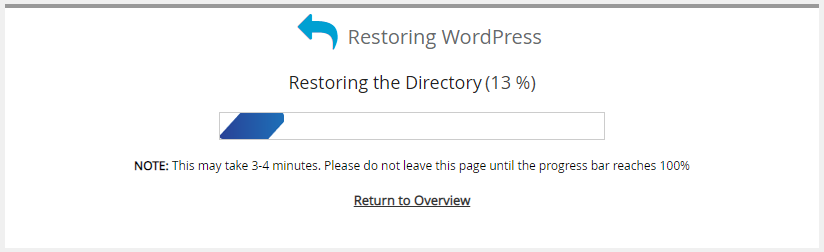
- You will see a status bar until the restore is complete.
- Once the restore has been completed, you will see a message like the one below, letting you know that it was completed successfully.
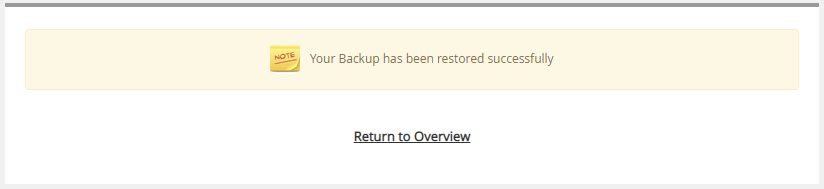
Congratulations! You’ve restored the backup to your live site.