- Login to cPanel.
- Click the Softaculous icon.
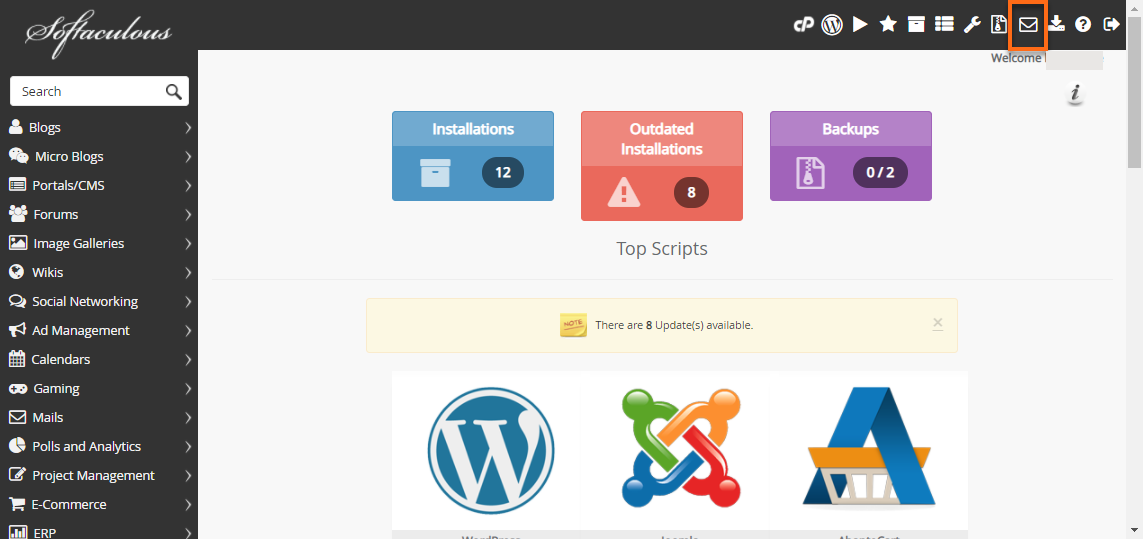
- Click Email Settings in the Softaculous Home Page.
- Update your Email Settings.
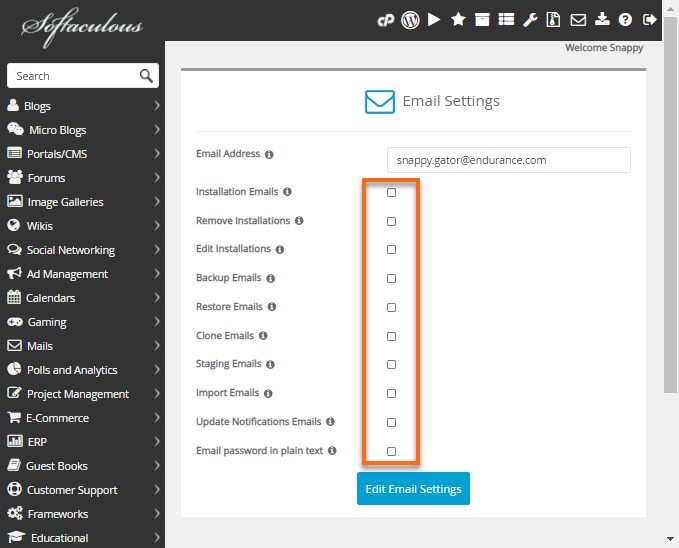
Manage your Email Settings:
- Installation Emails: Uncheck the box to disable the email notification when you install a script.
- Remove Installations: Uncheck the box to disable the email notification when you uninstall a script.
- Edit Installations: Uncheck the box to disable the email notification when you edit an installation.
- Backup Emails: Uncheck the box to disable the email notification when you backup an installation.
- Restore Emails: Uncheck the box to disable the email notification when you restore a backup.
- Clone Emails: Uncheck the box to disable the email notification when you clone an installation.
- Staging Emails: Uncheck the box to disable the email notification when you create a staging copy of your installation.
- Import Emails: Uncheck the box to disable the email notification when you import installation.
- Update Notification Emails: Uncheck the box to disable the email notification about script updates available, or plugin/themes update available.
- Click the Edit Email Settings to Save the new setup.

Knowledge Base
Click to Copy