To install WordPress via Softaculous:
- Log in to your cPanel.
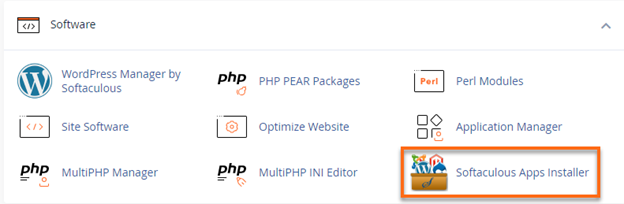
- Look for the Software section and click on Softaculous Apps Installer.
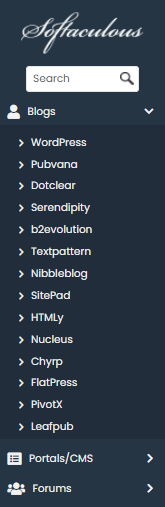
- On the Softaculous homepage, click on the application category in the left-hand sidebar to expand and display the application scripts available.
- Click on the application script which you wish to install on your account. (Example: WordPress)
- The details regarding that script will be displayed; this includes the Install, Overview, Features, Screenshots, Demo, Ratings, Reviews, Import options, and more.
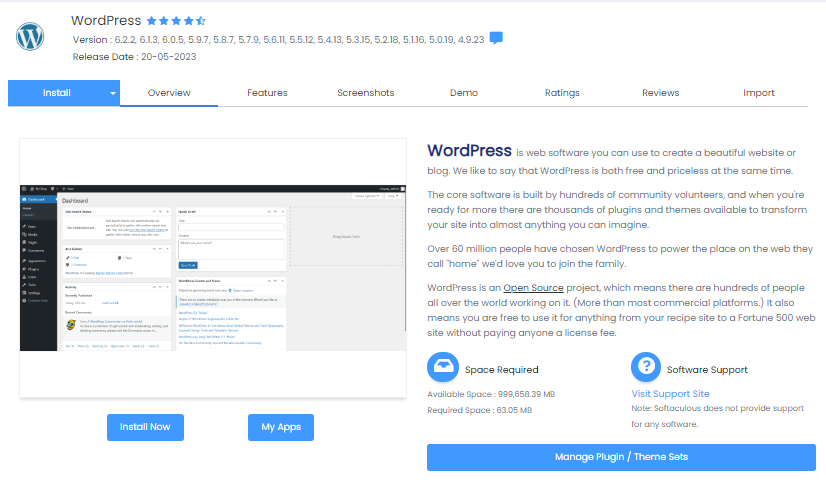
- When you are ready to install, click on the Install tab.
Note: There are 2 options under the Install tab.
- Quick Install: Select this option to reduce the amount of information to be provided on the installation form.
- Custom Install: Use this option to configure more settings and information during the installation.
- Fill in the information listed on the form.The form may include the following depending upon the script that is being installed.
- Software Setup: Configure the installation URL by selecting the protocol, domain and adding a directory if needed. In most cases, if you want the script application to be found directly on the domain, you do not fill in anything for the directory. For the protocol, make sure to select HTTPS if the domain is using an SSL.
- Site Settings: Options may vary based on the script being installed.
- Admin Account: Configure the Admin Username, Admin Password, and Admin Email address. Use the password strength indicator to create a Strong password successfully. Click Hide to toggle the visibility of the password field content. Click the Key icon to auto-generate a strong password. Make sure to keep a record of these settings.
- Choose Language: Based on the script application installed, an option to select a different language may be available.
- Advanced Options: Pending the script that is being installed, it may provide advanced options in the custom install. These options will vary, but they may include setting the database name, table prefix, disabling update notification emails, setting auto-upgrade, and more.
- (Optional) At the bottom of the form, fill out the Email installation details to: box with the email address that should receive the details from this installation.

- Once the installation form is filled out, click the Install button.
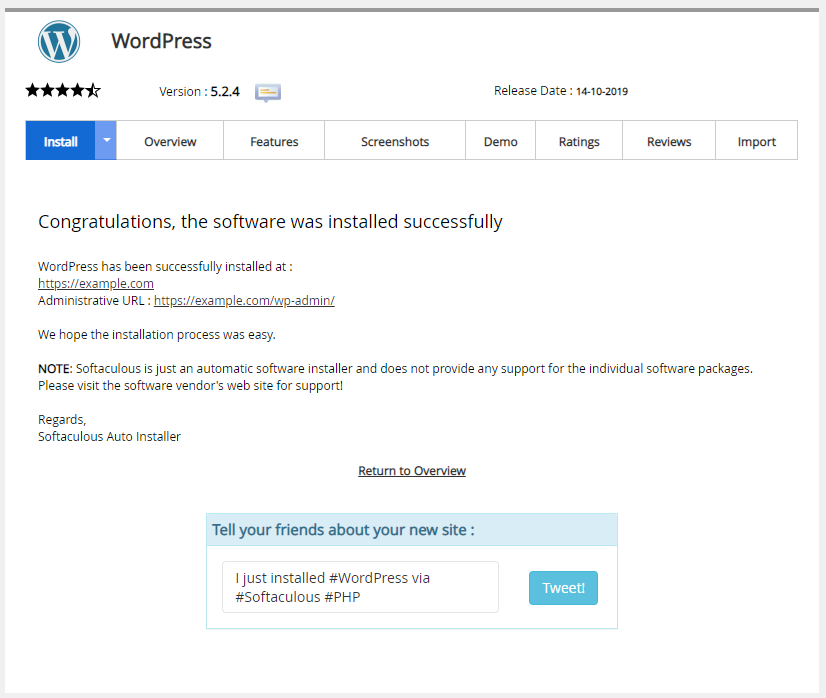
- After Softaculous installs the script, a message will appear stating if the installation was successful or not.
- Use the links provided on the successful installation page to access the script’s admin dashboard.