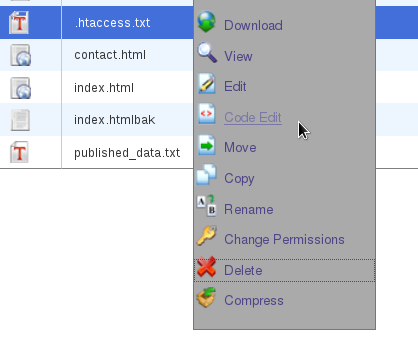
- Use your cPanel’s File Manager to create a new file in the desired folder (typically you will want this in your domain’s document root) You can name it what you like – for our purposes, we’ll call it .htaccess.txt.
- Open this file by right-clicking it, then select “Code edit” from the pop-up box.
- Paste the desired code into this new file.
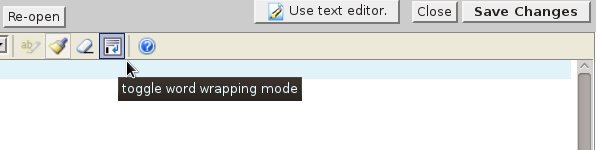
- Toggle the word-wrapping mode by clicking the toolbar icon as shown:
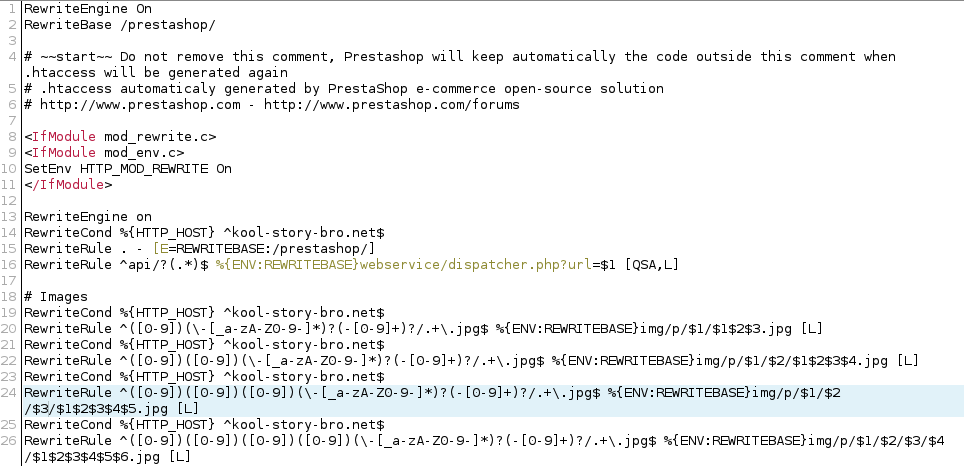
- You should see that your code is now properly arranged (note that you can turn word wrapping on and still see your long lines preserved as single numbered lines as demonstrated below:
- Save this file.
- Rename the current .htaccess to .htaccess-old
- Refresh the page.
- A new, blank .htaccess file should be present in your cPanel File Manager. (The system always requires an .htaccess file – if it senses there isn’t one, it will create this new, blank one.)
- Copy the properly formatted code from your .htaccess.txt file into the new .htaccess file.
- Save the .htaccess file.
- Test – your code should now be free from line break errors.

Knowledge Base
Click to Copy