
Access AWStats
To access AWStats for your site:
- Log in to cPanel.
- In the Metrics section, click the AWStats icon.
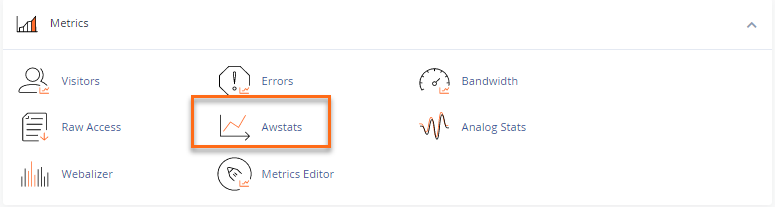
- Click the View icon next to the domain name for which you wish to view stats.
For help understanding your AWStats results, please refer to the official AWStats website.
VPS and Dedicated hosting customers may need to activate web statistics in WHM.
To modify statistics settings in WHM:
- Log in to WHM.
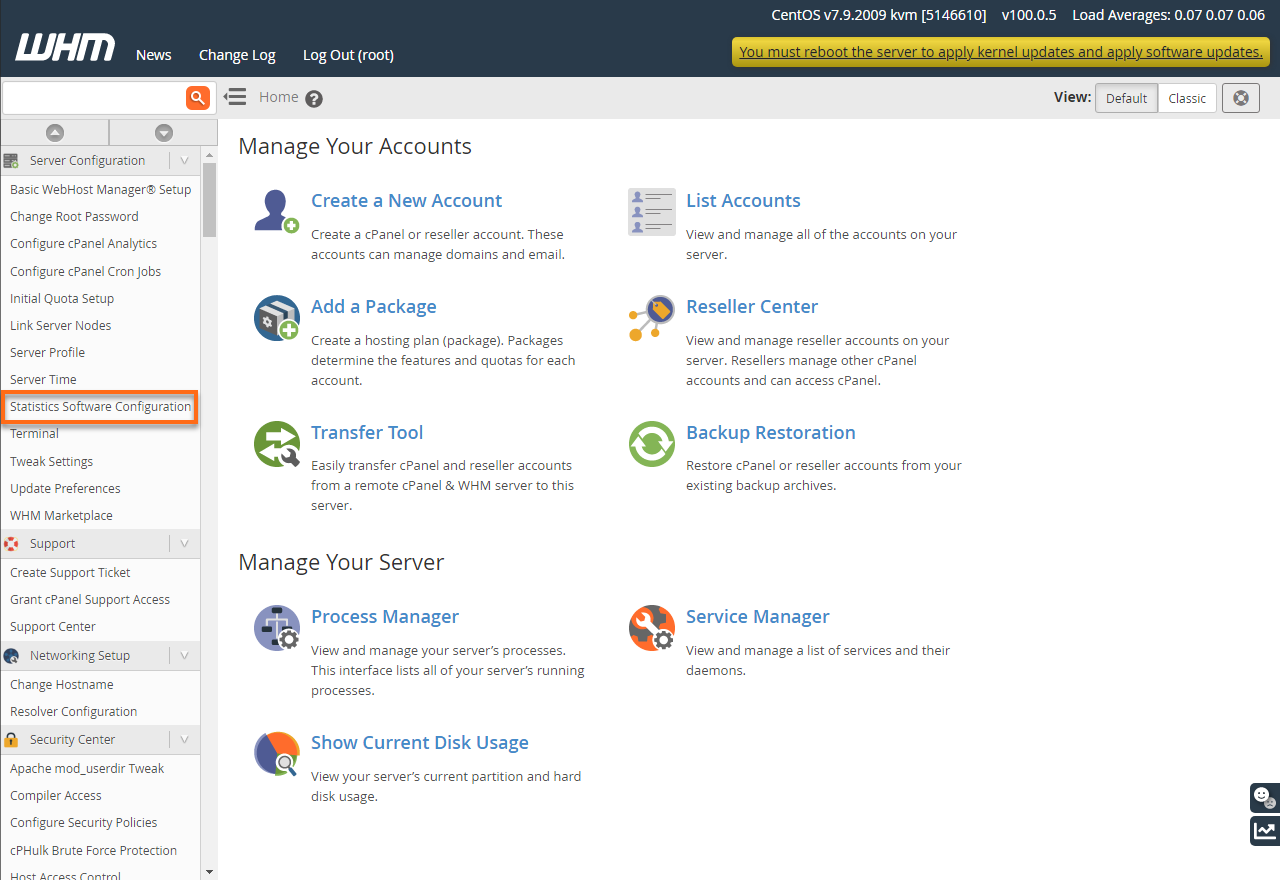
- In the Server Configuration section, click Statistics Software Configuration.
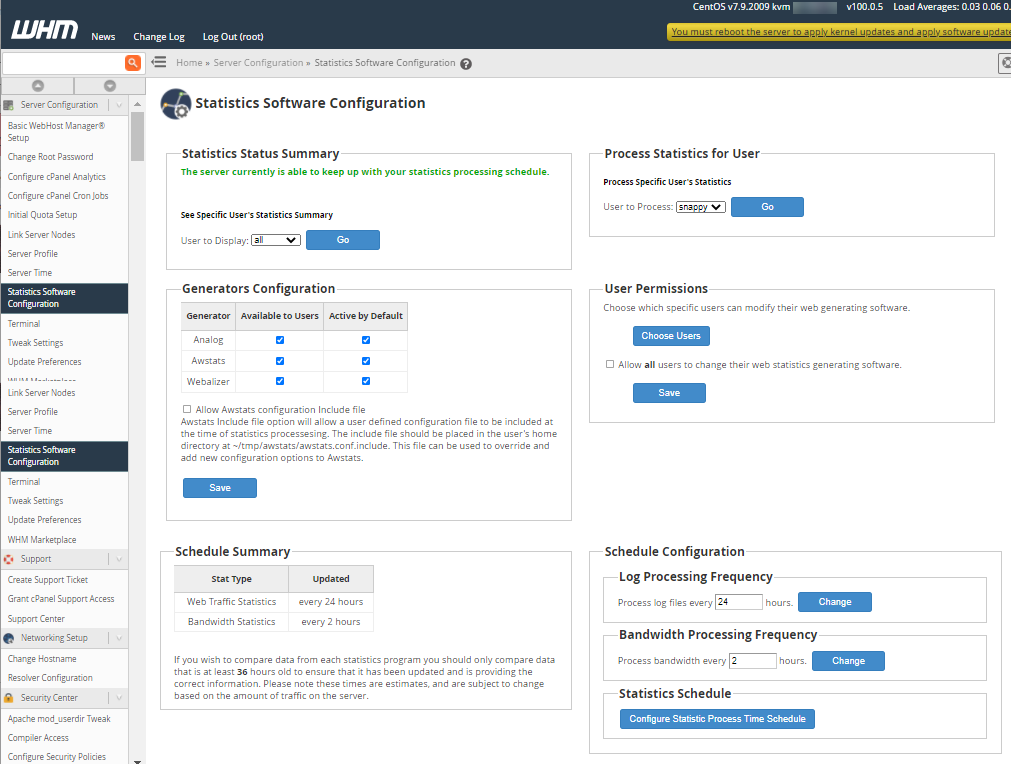
- Adjust the settings and save.
Exclude an IP address from AWStats
You can specify an IP address that you do not want to be logged in AWStats to keep your page visits from being counted. This will allow you to view your site and make updates without affecting the daily statistics.
To exclude your IP address:
- Search for your current local IP address.
To know your current local IP address, please visit google.com/search?q=what+is+my+ip or use Google to search for ‘what is my IP.’ Google will display your IP Address in the search results. Please note that this feature is only available in English.
- Log in to cPanel.
- In the Files section, click the File Manager icon.
- Navigate to public_html and open the tmp folder.
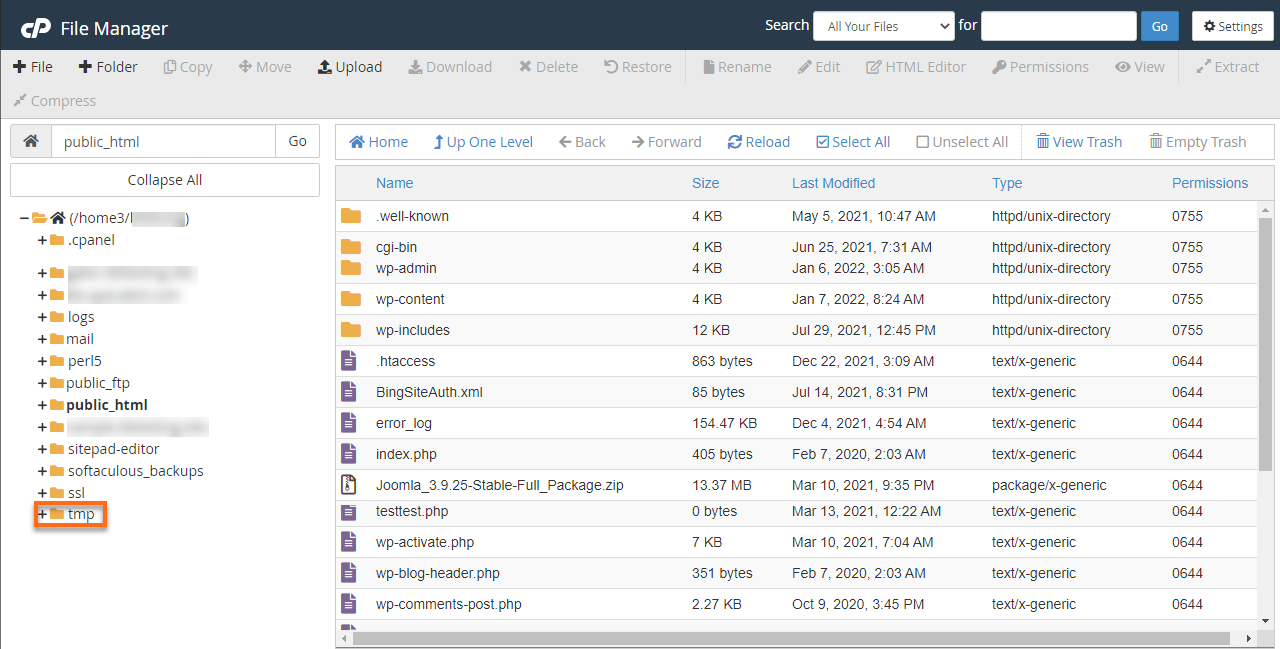
- Open the awstats folder.
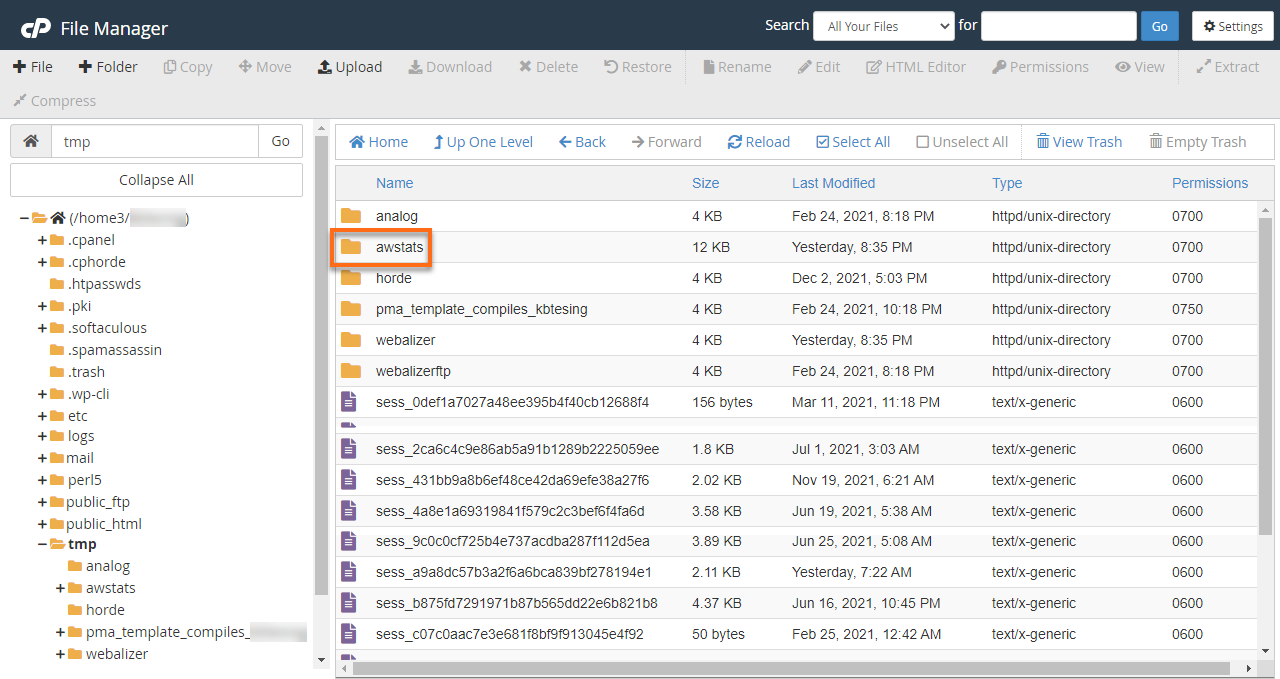
- Look for the file named awstats.example.com.conf (‘example.com’ will be your actual domain name) and right-click to select Edit.
- Scroll down to the line and locate Skiphosts.
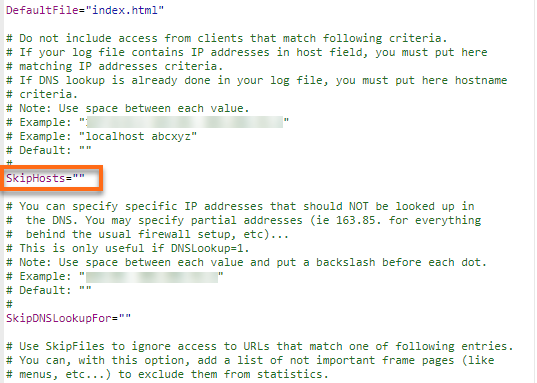
- Add your connecting IP you took in Step 1 inside the quotes. For example:
SkipHosts="123.45.67.890" - Click the Save Changes button located in the top-right corner.