
As a beginner, the cPanel dashboard can be pretty overwhelming. First, you will see all these different icons in rows and columns, with tables of information clustered together with words and numbers that all seem unfamiliar.
Rest assured, all of this will start to make perfect sense the more you use your cPanel dashboard.
Let’s break down the important stuff.
Overview- One way to reduce the eyestrain created by seeing so much new data is to think about your cPanel, just like keys on a keyboard. Some keys you use a lot, while others you have never even touched. Some you may apply by themselves, or you can use multiple at a time to achieve a particular result.
You may notice each section has a header with a title and some icons underneath. These titles and icons help quickly sort your control panel’s necessary features, which all web servers have.
Look through the sections and check out the icons contained within. Remember, it’s unnecessary to know or memorize every icon. We recommend getting familiar with the sections and understanding why those icons were grouped into that section.
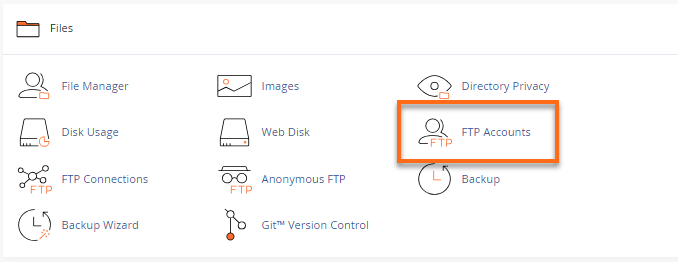
Files – This popular area will allow you to access all your files, including webpage files, images, FTP accounts, and the data associated with those.
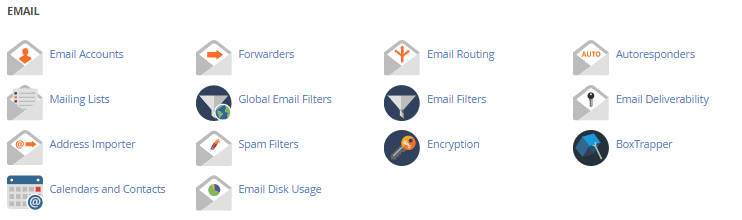
Email – Here, you can add new addresses, manage email, and other things like contacts, security, and email filters. For more information on email, check out: How Do I Create Email Accounts in cPanel?
Databases – This is where you can manage your database content, features, and users. Think of Databases as large spreadsheets that are tracking information for your website.

Domains – This more common area is where you go to manage domains, sub-domains, and DNS.

Metrics – This is where you can review the performance numbers associated with your site and server, such as bandwidth, errors, and visitors statistics.

Security – This area will help you to monitor and manage the more sensitive areas of your site.

Software – For more advanced users, or developers, this area will help provide more in-depth tools regarding PHP, Ruby, and Perl. If you are unfamiliar with these, no worries, you won’t need these items to get started.

Advanced – Just like software, this section is for more advanced users or developers but still Advanced features of your server, such as Cron jobs, Apache Handlers, and more error pages.

Preferences – Here, you can edit the look, feel, and specifics of your cPanel dashboard to better suit your needs.

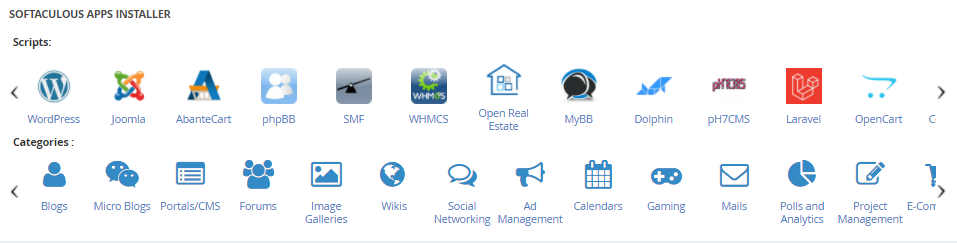
Softaculous Installer- This area lists the scripts like WordPress, Joomla, Magento, etc., which you can use for website development.
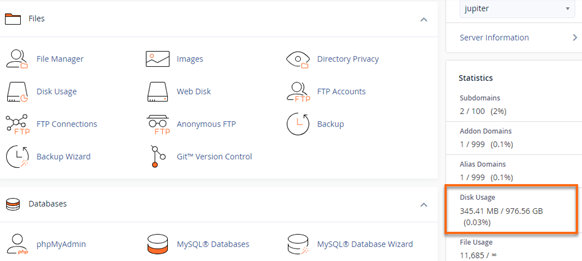
You may also see (at the left-side of your cPanel) the following data sections:
Statics– Sometimes separated, the statistical data will provide the overall # of features you are utilizing and the data. For example, here, you will see the number of the email address you have created, the number of Databases and the total amount of usage they contain, and the number of domain/ subdomains you have added to the cPanel, and more.
General Information – Will provide the unique information needed to identify and link to your server, such as your current user name, IP address, nameservers, and so much more.